Generate a Report for All Customer Deployed Assets
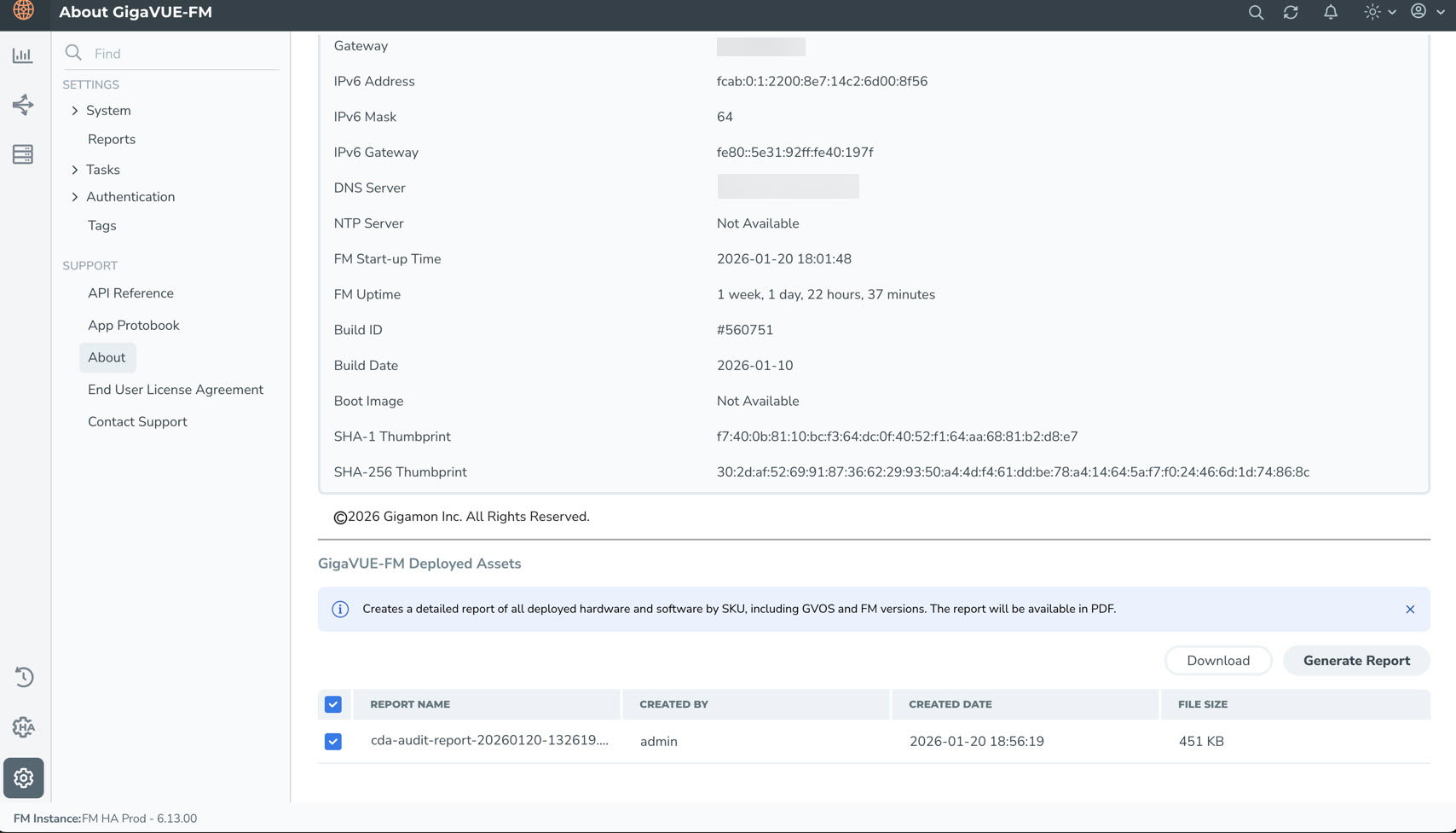
GigaVUE‑FM allows you to generate a Customer Deployed Assets (CDA) report. It creates a detailed report of all deployed hardware and software by SKU, including GigaVUE-OS and GigaVUE‑FM versions. GigaVUE‑FM also automatically generates a CDA report every Sunday. To generate a CDA report manually:
1. Go to  > Settings > Support > About.
2. Click Generate Report in the GigaVUE‑FM Deployed Assets section. A confirmation message stating that the Customer Deployed Assets (CDA) audit report generated successfully appears.
You can view the generated report in the Report Name column in the GigaVUE-FM Deployed Assets section. To download the report, click Download. The file gets downloaded to your local machine.
The report consists of information such as:
| GigaVUE‑FM Deployment Details |
| Physical Aggregate Inventory |
| Physical Node Summary |
| License Summary |
| Virtual Inventory |
| Physical Features Adoption Details |
| Cloud Features Adoption Details |
For more information on CDA, refer to Customer Deployed Assets.


