Import and Export Flexible Inline Solution
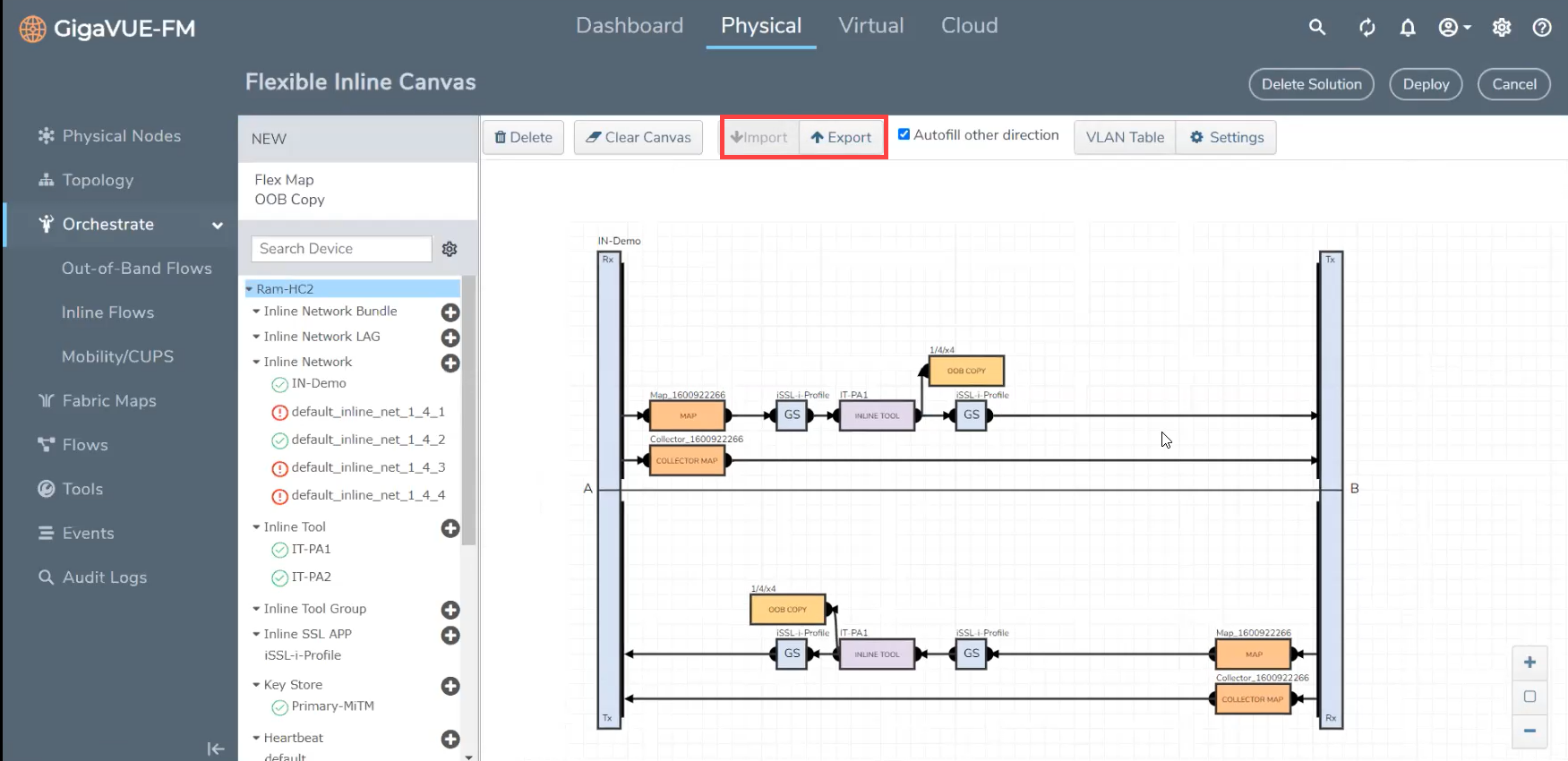
The flexible inline canvas allows you to import and export a flexible inline solution. The exported solution gets downloaded in to your local folder as an YAML file, which can be imported and deployed again in the following scenarios:
- Retrieve a solution that was deleted unintentionally
- Deploy the solution in another device
- Re-deploy a solution in the device after GigaVUE-FM is upgraded to a new version (in case of issues in the existing solution)
The downloaded YAML file contains the following information:
- Software version of the GigaVUE‑FM instance and the device on which the solution was created
- Member, port and configuration information of the various inline configurations such as the Inline Network Alias, Member Ports, Inline Tool Group Alias, and other such details.
 Rules and Notes
- When deploying a solution after GigaVUE-FM is upgraded to a new version, the source port in the target device must not have been used in any solution.
- When importing an YAML file, the following configurations specified in the YAML file must match the configurations in the target device:
- Inline network alias
- Inline network bundle alias
- Inline tool alias
- Inline network LAG alias
- Inline SSL App alias
Import and Export a Flexible Inline Solution
To import a file:
- Click the Import button on the canvas.
- Select the .YAML file, containing the required flexible inline solution, saved in your local folder. The solution appears in the canvas.
- Click Deploy to deploy the solution, again.
You can also edit an imported solution on the canvas, and re-export the same as a new solution.
To export a solution:
- Create a flexible inline solution and Deploy it.
- Click the Export button. The solution is downloaded as an YAML file.
- Save the file to the required location.


