Upgrade GigaVUE V Series Node for VMware NSX-T
You can deploy GigaVUE V Series Nodes applying one of the following two ways:
-
Using VMware NSX-T manager directly.
-
Using GigaVUE-FM
Choose the upgrade method based on the deployment approach. For details, refer to the relevant upgrade topic.
Important!GigaVUE‑FM version 6.11 supports GigaVUE V Series Node version 6.11 and up to two previous versions (n-2). Always use the latest V Series Node version with the corresponding GigaVUE‑FM version for best results.
Refer to the following sections:
Prerequisite
Before you upgrade the GigaVUE V Series Nodes, you must upgrade GigaVUE-FM to software version 5.13 or above.
Obtaining Software Images
To obtain software images:
-
1. Log in to the Gigamon Community portal. -
2. Search for V Series OVA images. -
3. Download the file to the local server. -
4. Place it in an Internal server / External server directory.
Upgrade GigaVUE V Series Nodes Deployed using GigaVUE-FM
Note: Before upgrading the nodes ensure that all the current V Series nodes are of the same version.
To upgrade GigaVUE V Series Node in GigaVUE-FM,
- In GigaVUE‑FM, go to Inventory > VIRTUAL > VMware NSX-T (V Series).
- Select Monitoring Domain.
- On the Monitoring Domain page, select the desired deployed monitoring domain and select Actions>Upgrade Fabric.
The V Series Node Upgrade dialog box appears.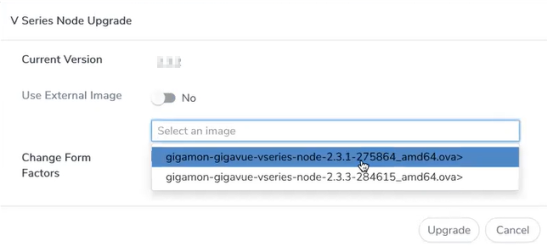
-
In the V Series Node Upgrade dialog box, perform the following steps:
-
Toggle Use External Image to:
-
Yes: Enter the external image URL. Ensure the OVA contents (OVF and VMDK files) are extracted and available at that location.
-
No: Select an uploaded image from the drop-down list.
-
-
(Optional) Select Change Form Factors to adjust the instance size.
-
-
Select Upgrade.
Note: The new or the current V Series nodes appear on the same monitoring domain until the new nodes replace the current nodes and the status changes to Ok.
Monitor Upgrade Status
-
You can view the status of the upgrade in the Status column of the Monitoring Domain page.
-
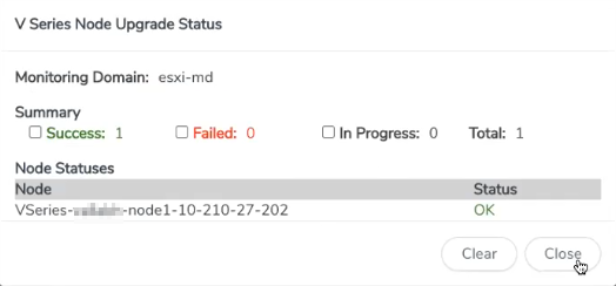
To view the detailed upgrade status, select Upgrade in progress or Upgrade successful. The V Series Node Upgrade Status dialog box appears.
-
Select Clear to delete the logs of successfully upgraded nodes.
You cannot modify the form factor or the V Series image when you are using the Continue Fabric Upgrade option. GigaVUE‑FM uses the same values as those defined in the initial fabric upgrade configuration.
Note: GigaVUE‑FM supports Monitoring Domain upgrades only when a single service deployment exists in the domain.
Upgrade GigaVUE V Series Node Deployed using VMware NSX-T Manager
To upgrade V Series Nodes deployed using VMware NSX-T,
- In VMware NSX-T Manager, delete the existing V Series Node.
- In the Monitoring Domain page, select Actions > Edit.
- On the VMware Configuration page, perform one of the following:
- Enter the new Image URL
- Select a new image if Use External Image toggle button is disabled.
- Re-deploy the new V Series Nodes in the VMware NSX-T manager.
-
GigaVUE‑FM turns off the Upgrade button for nodes deployed through VMware NSX-T Manager.
-
If the upgrade initially fails in NSX-T but later succeeds, GigaVUE‑FM does not update the status automatically.
-
To correct the status, manually delete and re-deploy the V Series Node in GigaVUE‑FM.


