GigaVUE‑FM Appliance Backup and Restore
GigaVUE‑FM includes a backup-and-restore feature for saving configuration data. You can use the saved data to restore an instance of GigaVUE‑FM or provide a copy of the configuration data and have it available for a new instance of GigaVUE‑FM. This is useful for restoring the configuration on an appliance or when migrating to a GigaVUE‑FM hardware appliance.
You can schedule GigaVUE‑FM for an immediate backup or schedule a backup to occur once at a specified time or on a reoccurring basis. For example, you can schedule a backup for a particular day, week, month, or date at regular intervals.
Note: GigaVUE‑FM backup and restore is not supported for cloud solutions.
Rules and Notes
GigaVUE‑FM Backup
- Backup is only supported for users with super admin privileges.
- When you backup GigaVUE‑FM, it will be in maintenance mode, and you cannot perform any operations such as create, update and delete. You can only view the data in GigaVUE‑FM.
- If you perform a GigaVUE‑FM backup in parallel with another backup that is already in progress, you will be notified about the status and instructed to perform the second backup at a later time.
- After the backup operation is completed an event is received in the Events page.
- When creating a backup file, do not include the following special characters: space * " ? ; : , / % @ in the alias.
- Backup of GigaVUE‑FM is only supported from GigaVUE‑FM version 5.13.00.
GigaVUE‑FM Restore Process
|
■
|
Restore of GigaVUE‑FM is only supported for users with super admin privileges. |
|
■
|
During the restoration process, the database is restored from the backup while retaining the previously active GigaVUE‑FM licenses. |
|
■
|
If you destroy the existing GigaVUE‑FM and deploy a new one with the same MAC address, the backup will be restored and the same GigaVUE‑FM license will be reinstalled on the destroyed unit. |
- Restore operation will only add the licenses for that GigaVUE‑FM instance. Ensure to have the licenses for the nodes and other GigaVUE‑FM instances (in case of High Availability) before the restore operation. Add the licenses after the restore operation is completed.
- After restore, you must reconfigure the RADIUS and TACACS+ passwords.
- Restore of GigaVUE‑FM is only supported from GigaVUE‑FM version 5.13.00.
Recovery Process
|
■
|
If the GVOS backup in GigaVUE‑FM has not changed, it can be restored to bring both GigaVUE‑FM and GigaVUE-OS back into parity. |
|
■
|
If the GigaVUE-OS backup has changed, delete and recreate the solution in GigaVUE-FM. |
|
■
|
To avoid issues, it is recommended to have daily or scheduled periodic backups of both GVOS and FM.
|
Data Saved When Backing Up GigaVUE‑FM
When you back up GigaVUE‑FM, the following information is saved:
|
■
|
List of standalone nodes and clusters that are directly under the management of the GigaVUE-FM. |
|
■
|
User credentials needed to access the nodes |
|
■
|
Node level user account and RBAC configurations |
|
■
|
GigaVUE‑FM credentials and preferences |
|
■
|
GigaVUE‑FM database dump |
|
■
|
GigaVUE-OS backups maintained by GigaVUE‑FM |
|
■
|
Certificates of Fabrics (GVOS, VSN, Controller) |
|
■
|
Solution configuration data |
|
■
|
Solution level metadata |
|
■
|
Other information, such as node level Radius, TACACS, SSH servers and SNMP or email notification configurations |
The backup does not include the following data:
|
■
|
GigaVUE‑FM appliance host/IP configuration |
|
■
|
System configuration of GigaVUE-FM. For example, DHCP, NTP, DNS configurations, FMHA Tunnel Operation mode, etc., |
These are configured through the fmctl configuration when configuring a new GigaVUE‑FM.
Backup Immediately
To do an immediate back up of a GigaVUE‑FM, do the following:
|
1.
|
On the right side of the top navigation bar, click  . . |
|
2.
|
On the left navigation pane, select System > Backup/Restore > GigaVUE FM Appliance. |
|
5.
|
Select the archive server for the backup file. Refer to 1. |
To add an archive server, refer to Add an Archive Server.

|
1
|
Immediate Backup to an Archive Server |
Schedule Backups
To create a schedule for backing up GigaVUE‑FM, do the following:
|
1.
|
On the right side of the top navigation bar, click . |
|
2.
|
On the left navigation pane, select System > Backup/Restore > GigaVUE FM Appliance. |
The GigaVUE‑FM time clock is based on ESX host time. Make sure that you have synchronized clock before any scheduling operation.
|
3.
|
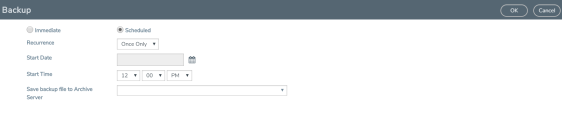
To repeat backups, use Recurrences, Start Date, and Start Time to set how often the backup occurs, at what time, and when the backup schedule will end. |
If you want to schedule a single backup for a specific data and time, select Once Only for Recurrence.
2 shows an example scheduled backup. In this example, the weekly backup to archive server Archive Server 1 starts on March 17 and occurs every Saturday at 9:00 pm until March 31.
|
2
|
Scheduled Backup for GigaVUE‑FM |
|
4.
|
Click OK. To monitor the progress of the event, select All Alarms/Events in the left navigation pane. |
Once you have scheduled a recurring backup, the scheduled backup appears as a scheduled task on the Scheduled Tasks page. To view tasks, select Tasks > Scheduled Tasks. After the backup has completed the outcome of the task is displayed on the Alarm/Events page.
Restore GigaVUE‑FM Configuration Files
To restore a GigaVUE‑FM configuration from a backup file, do the following:
|
1.
|
On the right side of the top navigation bar, click . |
|
2.
|
On the left navigation pane, select System > Backup/Restore > GigaVUE‑FM Appliance. |
The Restore page displays, showing the file names from which to restore.
|
4.
|
Select the Archive Server from which to retrieve the backup file. |
|
5.
|
Select the configuration to restore by clicking the check box next to the file name. Only one configuration can be selected with an restore action. |
Note: GigaVUE-FM will reboot once after successful restore operation. Logs will be recorded in the Audit Logs page with Restore Complete/Success Message.
After successful restoration, the configuration available in the backup file will be persisted. Restore Success Event is recorded in the Events page. If Restore Failure Event appears after GigaVUE-FM restore operation, then the configuration that existed before the restore operation will remain.


