Configure GCB Settings
You can configure the following settings in GigaVUE‑FM:
GCB General Settings
In the GCB General Settings, you can specify the purge interval to automatically remove the GCBs that are disconnected for a long duration.
Note: GigaVUE‑FM generates an alarm for the disconnected GCB when the GCB heartbeats are not received for more than 15 minutes. For details, refer to the
To view or edit the GCB general settings,
- In GigaVUE‑FM, navigate to Inventory > CONTAINER > Gigamon Containerized Broker > Settings. The Settings page appears.
- From the Settings page, on the General section, select Edit. The Edit General Settings quick view appears.
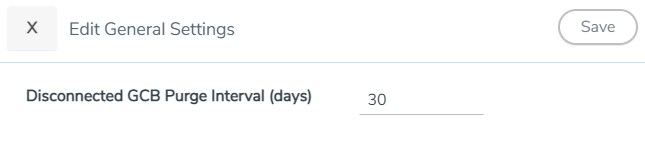
- Enter the number of days to retain the disconnected GCB. After this duration, the disconnected GCB is removed.
- Select Save. The General Settings are updated.
GCB Individual Settings
 GCB Log Level Settings
In GigaVUE‑FM, you can control the level of logs created at each individual GCB for troubleshooting. The regular GCB log file name format is gcb_http2.log.
To view or edit the GCB log level settings,
- In GigaVUE‑FM, navigate to Inventory > CONTAINER > Gigamon Containerized Broker > Settings. The Settings page appears.
- From the Settings page, select a GCB to view or edit the GCB log configuration.
- Select Edit to edit the required GCB log values in the Individual Settings section.
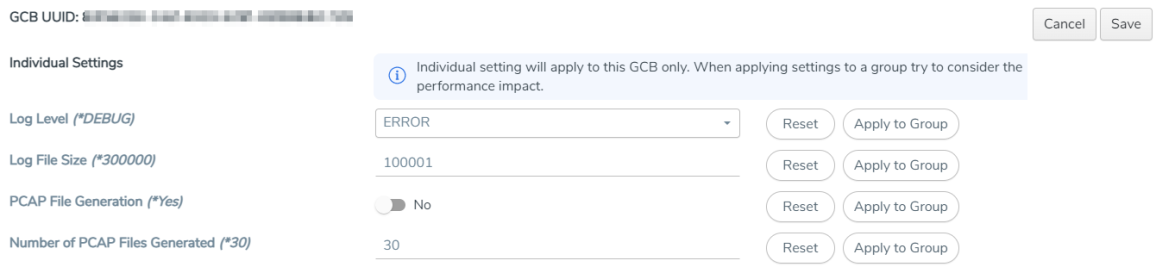
Field
Description Log Level Select one of the following:
- DEBUG: fine-grained log information for application debugging
- INFO: coarse-grained log information for highlighting application progress
- WARN: Log information of potentially harmful situations
- ERROR: Log information of the error events that allows the application to run continuously
- FATAL: Log information of very severe error events that presumably lead the application to abort.
Log File Size
Enter a value for the number of lines in the GCB log file.
PCAP File Generation
Select Yes to generate the PCAP file and select No to continue without the PCAP file.
Number of PCAP Files Generated
Enter a value for the number of PCAP files to be generated and stored on the GCB.
On one of the above fields,
- Select Reset to reset the value to default.
- Select Apply to Group to apply the value to all the members of the group
GCB Transaction Logging Settings
The GCB considers an HTTPS POST message from Pcapper to GCB as a transaction. The Transaction Logging feature collects data from the transaction to aid in troubleshooting problems such as dropped packets, or no traffic at tools. For each transaction, GCB creates a transaction record. The transaction record is logged to a transaction log file in the GCB pod or into the Kubernetes logging stdout stream.
The transaction log consists of various items like transaction index, transaction time, source, and destination details extracted from the data sources like GCB system time, Pcapper metadata field, and Pcapper transaction. Each pod can have a maximum of ten log files.
The GCB transaction log file name format is gcb_trans_<YYYY-MM-DD_hh-mm-ss>.<csv | json>, and the file is located on each GCB Pod in the /pod-data directory.
To view or edit the transaction log settings,
- In GigaVUE‑FM, navigate to Inventory > CONTAINER > Gigamon Containerized Broker > Settings. The Settings page appears.
- From the Settings page, select a GCB to view or edit the GCB transaction log settings.
- Select Edit to edit the required GCB transaction log values in the Individual Settings section.
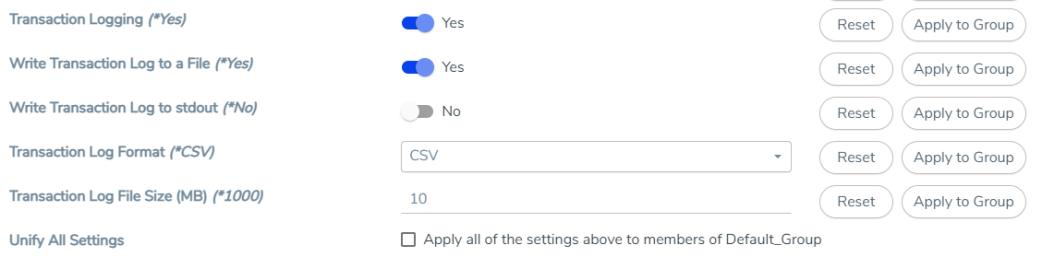
Field
Description Transaction Logging
Select Yes to enable the transaction logs generation or select No to disable the transaction logs generation.
Write Transaction Log to a File
Select Yes to save the generated transaction logs to a file on your GCB HTTPS Pods or select No to continue without saving the logs to a file.
Write Transaction Log to stdout
Select Yes to save the generated transaction logs to your Kubernetes logging standard output stream or select No to continue without saving the logs to your Kubernetes stdout.
Refer to Kubernetes Logging Architecture for detailed information on Kubernetes stdout.
Transaction Log Format
Select CSV or JSON as the transaction log file format.
Transaction Log File Size (MB)
Enter a value between 1 MB to 4095 MB for the transaction log file size.
A new log file is created whenever the log file reaches the specified file size.
Unify All Settings
Enable the Unify All Settings option to apply all the log settings to the members of the group.
On one of the above fields,
- Select Reset to reset the value to default.
- Select Apply to Group to apply the value to all the members of the group
GCB Group Settings
GCB Group settings allow you to configure group settings such as packet reordering settings to multiple GCBs present in a group. It allows you to create a group consisting of multiple GCBs with the same settings. You can change one or more group settings for a GCB group, and the changes are applied to all the GCBs in the group. You can create many GCB groups. Make sure to provide different names to all the groups.
GCB Packet Handing and Reordering Settings
When GCB receives an HTTPS POST request from Pcapper, it extracts headers, metadata, and packets from the message. After extraction, GCB applies the configured traffic policy and service identification, then forwards packets to the destination.
GCB handles the following cases:
Complete Transaction in a Single Request
When Pcapper sends all packets for a transaction in one HTTPS POST request to a single GCB instance, GCB detects the complete transaction, skips reordering or stitching, and immediately forwards the packets based on traffic policy and service identification settings.
Partial Transaction Across Multiple Requests (Same GCB Instance)
In some cases, a single request may not contain a complete transaction, or the request may include packets that are out of order. When GCB receives such requests from Pcapper, it verifies transaction completeness using metadata fields and the flow of the extracted messages.
If the request is incomplete, GCB queues it with timestamps until the packet reordering timeout expires. After reordering and stitching packets, GCB forwards the reconstructed transaction to the tools. If the queue reaches its maximum storage limit, GCB drops requests (either the oldest or most recent) based on the configured drop policy.
Partial Transaction Distributed Across Different GCB Instances
When a transaction is split across multiple packets, these packets may be sent to different GCB instances. To ensure all parts of a transaction are processed together, each GCB uses a hash of the transaction ID to identify the owning instance. If a GCB receives a packet for a transaction it does not own, it forwards that packet to the correct (owning) GCB instance.
The owning GCB instance gathers all related packets, reorders them as needed, and reconstructs the complete transaction before forwarding it to the appropriate destination.
To view or edit the GCB packet reordering settings,
- In GigaVUE‑FM, navigate to Inventory > CONTAINER > Gigamon Containerized Broker > Settings. The Settings page appears.
- From the Settings page, select a GCB to view or edit the GCB packet reordering settings.
- Select Edit to edit the required GCB packet reordering values in the Group Settings section.
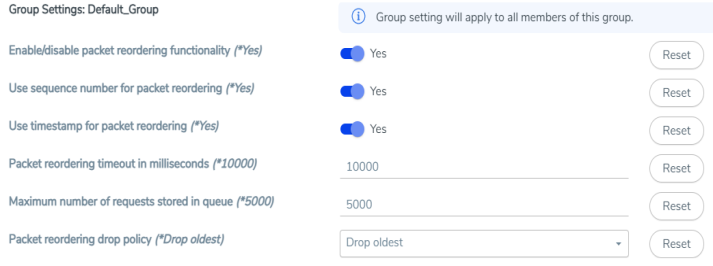
Field
Description Enable/disable packet reordering functionality
Select Yes to enable the packet reordering functionality or select No to disable the packet reordering functionality.
Use sequence number for packet reordering
Default: Yes
Select Yes to use sequence numbers provided in the Pcapper metadata to identify all parts of a transaction and to reorder packets before forwarding them to tools. This helps GCB reconstruct complete transactions when they arrive split across multiple HTTPS POST requests or out of order. Select No if the environment does not provide reliable sequence number metadata, if sequence numbers are known to be inconsistent, and you do not want GCB to rely on them during packet reordering, or to reorder packets based on timestamps instead of sequence numbers. Use timestamp for packet reordering
Default: Yes
Select Yes to use packet timestamps as part of the packet reordering policy. When enabled, GCB can reorder packets within a transaction based on their timestamps, which is useful when packets arrive out of order in time, even if they belong to the same transaction. Select No if packet order is already guaranteed by the upstream system and you prefer not to use timestamps as an additional ordering signal for their data traffic. Packet reordering timeout in milliseconds
Enter a value between 10000 to 3600000 milliseconds for the packet reordering timeout.
Packet reordering timeout in the duration, the GCB waits for the pending packets to complete the transaction, and after this timeout, all the related packets are dropped.
Maximum number of requests stored in queue
Enter a value between 1000 to 100000 requests for the maximum number of requests that can be stored in the queue.
Packet reordering drop policy
Select Drop most recent to drop the most recent packets when the queue is overloaded or select Drop oldest to drop the old packets when the queue is overloaded.


