Create Application Metadata Intelligence for Physical Environment
You can create an Application Metadata Intelligence session in GigaVUE‑FM by selecting the applications available from the Total Applications displayed on the Application Intelligence (AMI) dashboard.
To create an Application Metadata Intelligence session, follow these steps:
| 1. | On the left navigation pane, click Traffic  , select Solutions > App Intelligence. . , select Solutions > App Intelligence. . |
| 2. | In the Application Intelligence Session , click Application Metadata. |
You must configure Application Intelligence session to monitor the application on the network and to display them on the Total Applications. To create Application Intelligence session refer to Application Intelligence Session.In the created session, click Edit to configure Application Filtering, De‑duplication, and Application Metadata Intelligence. For each operation, click App Editor to open the Applications Editor page, where you can select the required application families and application tags. For details on mapping Legacy NetFlow (Gen2) application attributes to AMI application attributes, see Reference: Legacy NetFlow to AMI application attributes Mapping.
| 3. | From the navigation pane, click App Intelligence. Select the applications from the Total Applications in the right pane of the Application Intelligence dashboard. |
| 4. | Click Operations and select App Metadata from the drop-down list. |
You can view the list of applications selected in the Selected Applications section.
Application Metadata Intelligence generates more than 6000 attributes for more than 4300 applications without impacting the users, devices, applications, or the network appliances. The feature identifies applications even when the traffic is encrypted.
| 5. | Expand the application and select the attributes to be extracted. |
Note: Flow Direction/Behaviour under Application Metadata Settings must be configured as Bidirectional for exporting application Metadata. Each exporter can be configured to export application metadata for up to 256 applications, and up to 64 attributes can be exported for each application. GigaVUE-FM allows selecting metadata for applications that support exporting metadata. Applications which do not support exporting metadata are not listed in the GigaVUE-FM. By default, application name is exported for all such applications.
Note: The attributes IP source and IP destination cannot be configured to be extracted from the App Editor section. To export, them utilize the Advanced Settings > Collects section. The total number multi-collects for both IPFIX and CEF are up to five.
| 6. | In the DestinationTraffic section, you can attach up to five exporters to an AMI session. To add an exporter, click + Add New and enter the following information: |
| a. | Tool Name - Enter the name of the tool to which you want to export the application-specific metadata. |
| b. | Tool IP Address - Enter the IP address of the tool to which you want to export the application-specific metadata. You can provide either IPv4 or IPv6 address. |
| c. | IP Interface - Select the IP interface through which the GigaVUE‑FM needs to export the application-specific metadata to the tools. You can select either IPv4 or IPv6 interface. Provide IPv4 address as the destination address for IPv4 interface and provide IPv6 address as the destination address for IPv6 interface. You can also choose to create a new IP Interface. |
| d. | Tool Template - Select the tool template containing the list of applications and attributes that needs to be exported. Click the Save option to save the template as a new template. 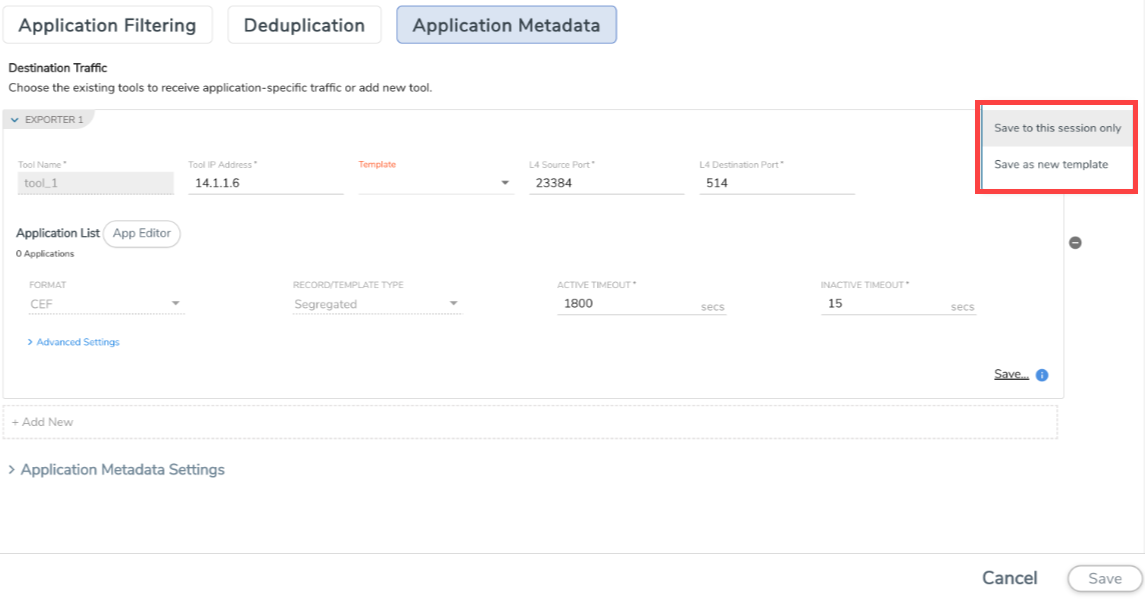 |
When editing the exporter template, if you change any of the non-editable fields (Format, Record Type, NetFlow Version), the solution fails.
Note: When you create a session with flow-behaviour as bi-directional, GigaVUE‑FM allows you to select Netflow v5 and v9 templates. When you edit the same session, you cannot select the Netflow v5, and v9 templates.
| e. | Enter the L4 Source Port, and the L4 Destination Port details. |
Note: If the export format is CEF, the default value for L4 destination port is 514. If the export format is NetFlow, the default value for L4 destination port is 2055.
| f. | Select the Format as CEF or NetFlow from the Format drop-down list. |
| g. | Select the Record/Template type as either of the following: |
| • | Segregated - The application-specific attributes and the generic attributes will be exported as an individual record to the tool. |
| • | Cohesive- The application-specific attributes and the generic attributes will be combined as a single record and exported to the tool. |
| h. | Enter the Active Timeout, InActive Timeout and Template Refresh time interval. |
Note: The format and the record/template type get selected automatically, after selecting the Tool Template.
| 7. | In the Advanced Settings > Collects section, you can select the following packet attributes: |
| Counter - Select the Bytes, and Packets. |
| IPv4 - Select the required attributes. By default, Source Address, Destination Address, and Protocol are enabled. |
| IPv6 - Select the required attributes. By default, Source Address, Destination Address, and Next Header are enabled. |
| Transport -Select the required attributes. By default, Source Port, Destination Port are enabled. |
By default, the above collect types are displayed. Click  to add the following collect types:
| • | Data Link - Select any one of the parameters such as Source Mac, Destination Mac and VLAN. |
| • | Timestamp - Select the required timestamp such as System Uptime First, Flow Start, System Uptime Last, and Flow End. |
| • | Flow - Select the parameter as End Reason if required. |
| • | Interface - Select any one of the parameter such as Input Physical, Output Physical and Input Name. |
| 8. | In the Application Metadata Settings section: |
| a. | Select the Flow Behavior as any one of the following: |
| • | Uni-Directional |
| • | Bi-Directional. The default value is Bi-Directional. |
| b. | Enter the Timeout and Cache Size. The cache size range allowed for different platform is given in the following table: |
|
Platform |
Range in million |
|---|---|
|
GigaVUE‑HC1 |
1 |
|
GigaVUE‑HC2 |
1 |
|
GigaVUE‑HC3 |
1-2 |
| c. | You can enable or disable the Multi-Collect option to perform the following: |
| • | Enable — Enables the multi-collect of attributes within a given Metadata Store cache which means that if a configured attributes is seen in multiple packets within the same flow, each of these information is collected. By default, when a new cache is created, multi-collect is enabled. When upgraded from an older release, the multi-collect option is enabled. |
| • | Disable — Disables the multi-collect of attributes within a given Metadata Store cache. |
| d. | You can use the toggle button to enable or disable the Aggregate Mode, which is disabled by default. You need to delete the existing solution and recreate the solution to enable the Aggregate Mode. The Aggregate Mode option is applicable only for Gen 3 devices. Only one exporter is supported with the Aggregate Mode enabled. |
Note: You need to enable the Aggregate Mode option to export the minimum, maximum, and mean of RTT values for the following list of supported protocols and attributes and also the aggregate of TCP Lost byte values collected per export time interval.
| Protocol Name | Attribute |
| http | rtt |
| icmp | rtt |
| icmp6 | rtt |
| ssh | rtt |
| tcp | rtt |
| tcp | rtt_app |
| telnet | rtt |
| wsp | connect_rtt |
| wsp | query_rtt |
| e. | You can enable or disable the Advance Hash option to perform the following: |
| • | Enable — Configures metadata cache advance-hash for encapsulated flows . This feature improves the efficiency of scheduling the distribution of encapsulated flows. It also improves the distribution of flows in service provider deployment cases. By default, when a new cache is created, advance hash is enabled. When upgraded from an older release, the advance hash is enabled. |
| • | Disable — Disables the metadata cache advance-hash for flows. |
| f. | If you want to include the VLAN ID along with the 5-tuple to identify the traffic flow, select the Data Link and enable the |
| g. | VLAN option. |
| h. | In the Observation Domain ID field, enter a value to identify the source from where the metadata is collected. The range is from 0 to 255. |
For example: If you enter 5 in this field, then the observation domain ID is calculated as follows:
|
Observation Domain ID (4-Bytes) |
|
|---|---|
|
Byte 1 |
0 |
|
Byte 2 |
1 |
|
Byte 3 |
GS engine slot (for e.g. 2 if 1/2/e1) |
|
Byte 4 |
User defined (for e.g. 5). Default : 0. |
The calculated value of Observation Domain Id in Hexadecimal is 00 01 02 05, and in Decimal is 66053.
| 9. | In the Selected Applications section, select Export and click Export To for the applications that needs to be exported to the destination tool. |
| 10. | Click Save. |
Reference: Legacy NetFlow to AMI application attributes Mapping
When migrating Legacy NetFlow (Gen2) IPFIX application attributes to AMI, use the following table to identify the corresponding AMI attributes.
|
Protocol |
Legacy Netflow Attribute ( Gen 2 ) |
AMI Attribute ( Gen 3) |
|---|---|---|
|
HTTP |
URL |
uri_raw_path |
|
HTTP Response Code |
code |
|
|
User Agent |
user_agent |
|
|
Host |
host |
|
|
Method |
method |
|
|
Version |
version |
|
|
SSL |
Certificate Issuer Common Name |
certificate_issuer_cn |
|
Certificate Subject Common Name |
common_name |
|
|
Certificate Issuer |
certificate_dn_issuer |
|
|
Certificate Subject |
certificate_subject_cn |
|
|
Certificate Valid Not Before |
validity_not_before |
|
|
Certificate Valid Not Before Text |
Not applicable; this attribute is exported in ID format by "validity_not_before" |
|
|
Certificate Valid Not After |
validity_not_after |
|
|
Certificate Valid Not After Text |
Not applicable; this attribute is exported in ID format by "validity_not_after" |
|
|
Certificate Serial Number |
Not applicable; this attribute is exported in ID format by "serial_number" |
|
|
Certificate Serial Number Text |
serial_number |
|
|
Certificate Subject Algorithm |
Not applicable; this attribute is exported in text format by "certificate_subject_key_algo_oid" |
|
|
Certificate Subject Algorithm Text |
certificate_subject_key_algo_oid |
|
|
Certificate Subject Key Size |
certificate_subject_key_size |
|
|
Certificate Subject Alternative Name |
subject_alt_name |
|
|
Server Name Indication |
server_name |
|
|
Server Version |
server_hello_version |
|
|
Server Version Text |
Not applicable; this attribute is exported in ID format by "server_hello_version" |
|
|
Server Cipher |
cipher_suite_id |
|
|
Server Cipher Text |
Not applicable; this attribute is exported in ID format by "cipher_suite_id" |
|
|
Server Compression Method |
compression_method |
|
|
Server Session ID |
session_id |
|
|
DNS |
Additional Name |
name |
|
Additional Type |
Not applicable; this attribute is exported in text format by "host_type" |
|
|
Additional Type Text |
host_type |
|
|
Additional Class |
host_class |
|
|
Additional Class Text |
Not applicable; this attribute is exported in ID format by "host_class" |
|
|
Additional TTL |
ttl |
|
|
Additional RData |
host |
|
|
Additional RData Length |
rdlength |
|
|
AN Count |
ancount |
|
|
AR Count |
arcount |
|
|
Authority Name |
name |
|
|
Authority Type |
Not applicable; this attribute is exported in text format by "host_type" |
|
|
Authority Type Text |
host_type |
|
|
Authority Class |
host_class |
|
|
Authority Class Text |
Not applicable; this attribute is exported in ID format by "host_class" |
|
|
Authority TTL |
ttl |
|
|
Authority RData |
host |
|
|
Authority RData Length |
rdlength |
|
|
Bits Count |
not supported |
|
|
Identifier |
transaction_id |
|
|
NS Count |
nscount |
|
|
Op Code |
opcode |
|
|
Qd Count |
qdcount |
|
|
Query Class |
class |
|
|
Query Class Text |
Not applicable; this attribute is exported in ID format by "class" |
|
|
Query Name |
query |
|
|
Query Type |
query_type |
|
|
Query Type Text |
Not applicable; this attribute is exported in ID format by "query_type" |
|
|
Response Class |
host_class |
|
|
Response Class Text |
Not applicable; this attribute is exported in ID format by "host_class" |
|
|
Response Name |
name |
|
|
Response Type |
host_type |
|
|
Response Type Text |
Not applicable; this attribute is exported in ID format by "host_type" |
|
|
Response IPv4 Address Text |
Not applicable; this attribute is exported in ID format by "host_addr" |
|
|
Response RData |
host |
|
|
Response RData Length |
rdlength |
|
|
Response TTL |
ttl |
|
|
Response IPv4 Address |
host_addr |
|
|
Response IPv6 Address |
host_addr6 |
|
|
Response IPv6 Address Text |
Not applicable; this attribute is exported in ID format by "host_addr6" |


