Create a Monitoring Session
A monitoring session defines how to process traffic and send it to the tunnel endpoints.
GigaVUE‑FM automatically collects inventory data on all target instances in your cloud environment. You can design your Monitoring Session to:
-
Include or exclude the instances that you want to monitor.
-
Monitor egress, ingress, or all traffic.
Target Instance
-
When a new target instance is added to your cloud environment, GigaVUE‑FM automatically detects and adds it to your Monitoring Session based on your selection criteria. Similarly, when an instance is removed, it updates the Monitoring Sessions.
-
For the VPCs without UCT-Vs, targets are not automatically selected. In those cases, you can use Customer Orchestrated Source in the Monitoring Session to accept a tunnel from anywhere.
You can create multiple Monitoring Sessions within one Monitoring Domain.
To create a new Monitoring Session:
- Go to Traffic > Virtual > Orchestrated Flows and select your cloud platform. The Monitoring Session page appears.
- Select New Monitoring Session to open the New Monitoring Session configuration page.
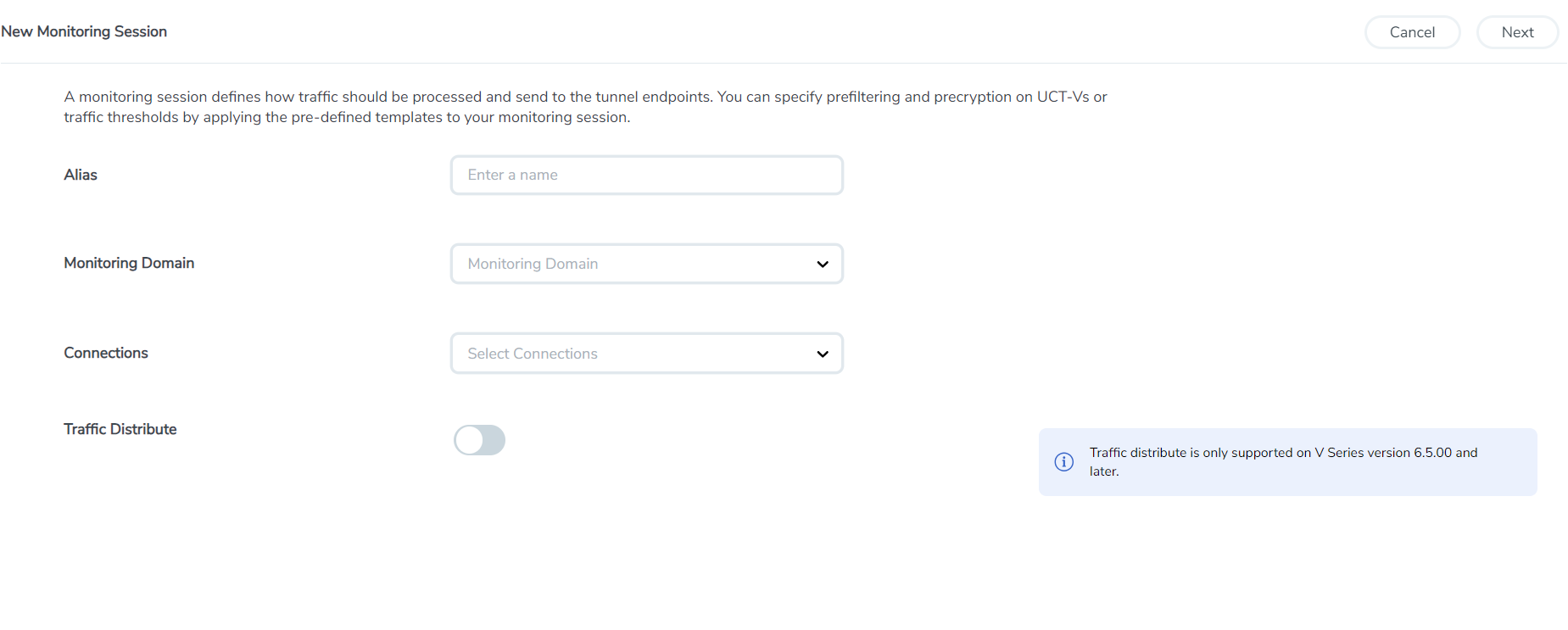
- In the configuration page, perform the following:
In the Alias field, enter the name of the Monitoring Session.
- From the Monitoring Domain drop-down list, select the desired Monitoring Domain or select Create New to create a Monitoring Domain. For details, refer to the Create a Monitoring Domain section in the respective cloud guides.
- From the Connections drop-down list, select the required connections to include as part of the Monitoring Domain.
- Enable the Distribute Traffic option to identify duplicate packets across different GigaVUE V Series Nodes when traffic from various targets is routed to these instances for monitoring.
- Select Create. The Monitoring Session details page displays the specified session information and target VMs.
Note: In a Monitoring Session, if a selected VM is connected to VSS and VDS, then GigaVUE‑FM creates tapping for both VSS and VDS network.
The Monitoring Session page also has the following buttons:
|
Button |
Description |
| Edit |
Opens the Edit page for the selected monitoring session. Note: In case of an error while editing a monitoring session, undeploy and deploy the monitoring session again. |
| Delete | Deletes the selected monitoring session. |
| Clone | Duplicates the selected monitoring session. |
| Deploy | Deploys the selected monitoring session. |
| Undeploy | Undeploys the selected monitoring session. |
| Apply Threshold |
This button helps you apply the threshold template created for monitoring cloud traffic health. For details, refer to Monitor Cloud Health |


