Manage Volume-based Licenses
To manage active Volume-Based License:
- On the left navigation pane, click
 .
. - Go to System > Licenses. From the top navigation bar, select the VBL Active from the FM/Cloud drop-down.
This page lists information like SKUs, Bundles, Start date, End date, Type, and Activation ID of the Volume-Based Licenses that are active. The expired licenses are automatically moved to the VBL Inactive page, which can be found under the FM/Cloud drop-down in the top navigation bar.
Click on the individual SKU to view the list of applications available for that particular SKU.
Use the following buttons to manage your active VBL.
|
Button |
Description |
|---|---|
|
Activate Licenses |
Use this button to activate a Volume-Based License. Refer to Activate Volume-based Licenses for more information. |
|
Email Volume Usage |
Use this button to send the volume usage details to the email recipients. |
|
Filter |
Use this button to narrow down the list of active Volume-Based Licenses that are displayed on the VBL active page. |
|
Export |
Use this button to export the details in the VBL active page to a CSV or XLSX file. |
|
Deactivate |
Use this button to deactivate the licenses. You can only deactivate licenses that are in grace period or that have expired. |
For more detailed information on dashboards and reports generation for Volume-Based Licensing refer the following table:
| For details about: | Reference section | Guide |
|---|---|---|
| How to generate Volume-Based License reports | How to Generate Volume-Based License Usage Reports | GigaVUE Administration Guide |
| Volume-Based Licensed report details | Volume Based License Usage Reports | GigaVUE Administration Guide |
| Fabric health analytics dashboards for Volume-Based Licenses usage | Dashboards for Volume-based Licenses Usage | GigaVUE-FM User Guide |
Activate Volume-based Licenses
To activate Volume-based licenses:
- On the left navigation pane, click . Go to System > Licenses.
- From the top navigation bar, select the VBL Active from the FM/Cloud drop-down.
- Click Activate Licenses. The Activate License page appears. Perform the following steps:
- Download the fabric inventory file that contains information about GigaVUE-FM and click Next. For more information about fabric inventory file, refer to the section What is a Fabric Inventory File?in the FAQs for Licensing chapter.
- Navigate to the Licensing Portal. Upload the Fabric Inventory file in the portal. Once the fabric inventory file is uploaded, select the required license and click Activate. A license key is provided. Record the license key or keys.
- Return to GigaVUE‑FM and add the additional licenses.
Default Trial Licenses
After you install GigaVUE-FM, a default free 1TB of CoreVUE trial volume-based license (VBL) is provided one-time for 30 days (from the date of installation).
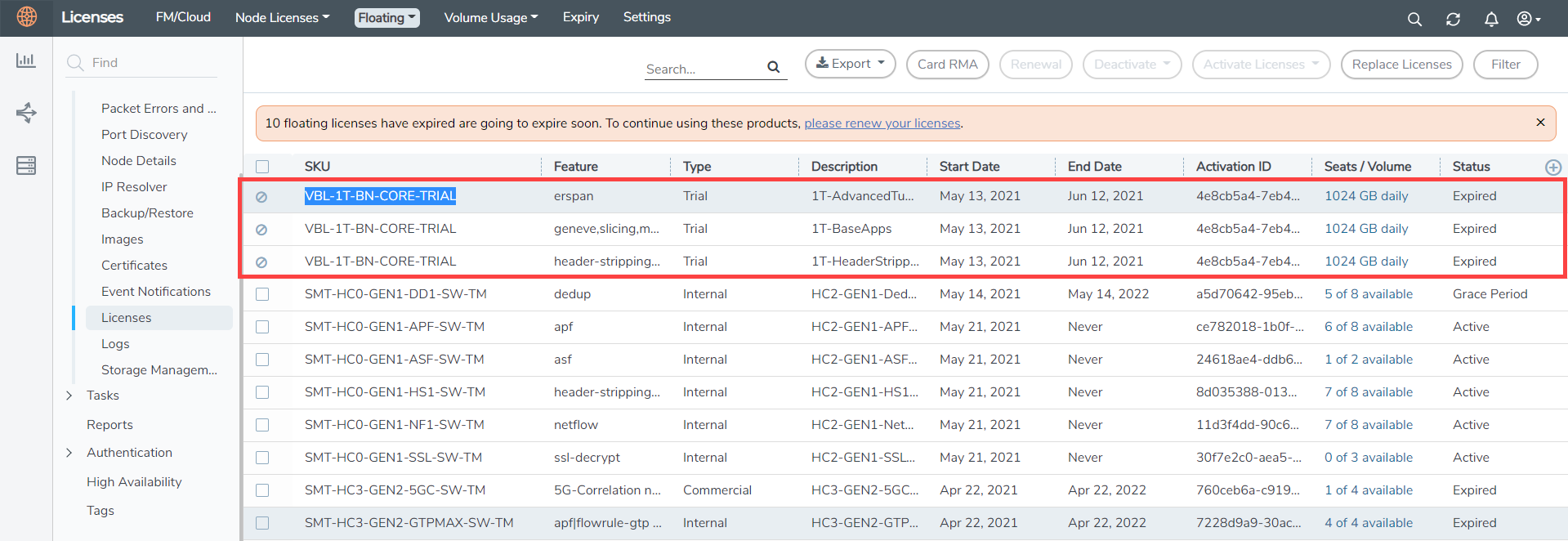
This license includes the following applications:
- ERSPAN
- Geneve
- Slicing
- Masking
- Trailer
- Tunneling
- Load Balancing
- Enhanced Load Balancing
- Flowmap
- Header-stripping
- Add header
Note: There is no grace period for the trial license. If you do not have any other Volume-based licenses installed, then after 30 days, on expiry of the trial license, any deployed monitoring sessions will be undeployed from the existing V series 2.0 nodes.
To deactivate the trial VBL refer to Delete Default Trial Licenses section for details.
Delete Default Trial Licenses
GigaVUE-FM allows you to deactivate the default trial licenses from this page. To deactivate the license:
| 1. |
On the left navigation pane, click . |
| 2. | Go to System > Licenses >Floating. Click Activated. |
| 3. | Click Deactivate > Default Trial VBL. |
The VBL trial licenses is deactivated and is no longer listed in the Activated page. However, you can view these deactivated licenses from the Deactivated page.


