Manage Rulesets across Traffic Policies
Duplication of existing rulesets across policies simplifies operations and improves ease of use. Manage Rulesets provides the ability to copy rules from one policy (source) and apply them to another policy (target). This feature copies rules within the same ruleset type (source-to-source or application-to-application), not across types.
You can copy one, multiple, or all rules from a policy. When pasting rules into a target policy, the system automatically detects duplicate rules. Duplicate rules are not replaced; instead, you are prompted to either cancel the paste operation or proceed by pasting only the non‑duplicate rules. Pasted rules are saved to the system but are not deployed automatically. You must explicitly deploy the policy to apply the changes to the device.
Copy Rules from a Source Policy
This section describes copy rules from a source policy, perform the following:
|
1.
|
In GigaVUE-FM, go to Traffic > Traffic Policy. The Traffic Policy landing page appears. |
|
2.
|
Click the policy alias to navigate to View mode. |
Note: View mode allows the configured policies to be seen in the Traffic Policies section by selecting them, and they can also be displayed in the canvas.
|
3.
|
Select the Policy > Actions > View Details. |
|
4.
|
To edit the map, click the Three-dots Menu  > Edit. > Edit. |
|
5.
|
Select the Source Ruleset or Application Ruleset that already exists to copy the rules. |
|
6.
|
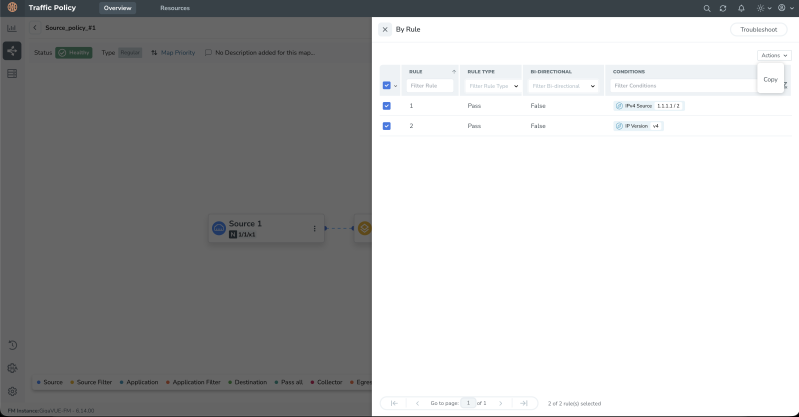
Use the checkboxes to select rules: choose one or more specific rules, or use the Select All option (if available) to select the entire ruleset. |
|
7.
|
From the Actions menu, click Copy. |
|
8.
|
The selected rules are stored and made available for pasting into one or more target policies. |
Paste Rules into a Target Policy
This section describes paste rules into a target policy, perform the following:
|
1.
|
In GigaVUE-FM, go to Traffic > Traffic Policy. The Traffic Policy landing page appears, open a target Traffic Policy where you want to reuse the copied rules. |
|
2.
|
To edit the map, click the Three-dots Menu > Edit. |
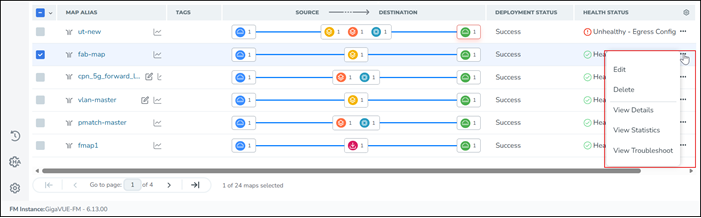
Note: Open a ruleset of the same type in the target policy (Source or Application) as the one you copied from.
|
3.
|
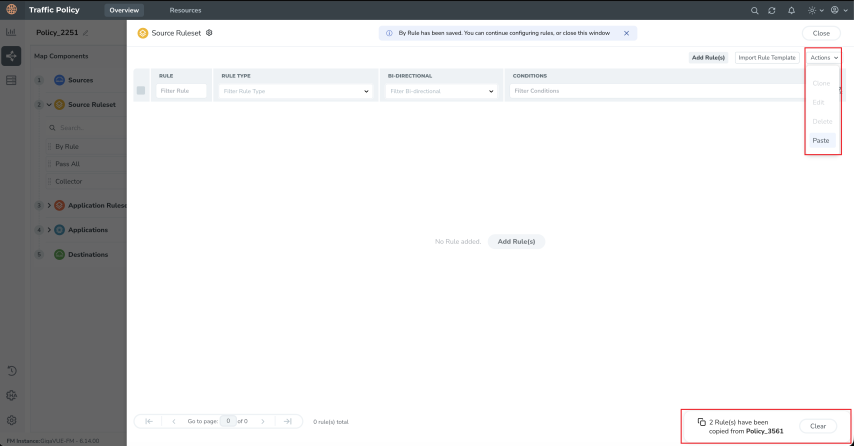
From the Actions menu, click Paste. |
|
4.
|
If any duplicate rules are detected in the target ruleset: |
|
a.
|
A dialog lists the existing rule IDs and the duplicate rule entries from the copied set. |
|
b.
|
Choose one of the following: |
|
•
|
Cancel – cancel the paste operation; no rules are added. |
|
•
|
Proceed – skips the duplicate rules and pastes only the non-duplicate rules. |
|
5.
|
After you proceed, the system:
|
|
o
|
Inserts the non-duplicate rules into the target ruleset. |
|
o
|
Allocates new rule IDs for all pasted rules in the target policy. |
|
6.
|
Repeat steps 1–5 for any additional target policies into which you want to paste the same copied rules. |
|
7.
|
Click Deploy to deploy the updated policies to the relevant devices. |
Manage Rulesets across Traffic Policies — Rules and Notes
|
1.
|
Rule-level MAC and IP rewrite options are copied, but map-level MAC and IP rewrite settings are not copied. |
|
2.
|
If you modify or delete rules in the source policy after copying, those changes do not affect the already copied rules. |
|
3.
|
The paste operation cannot be undone once the rules have been pasted. |
|
4.
|
You cannot copy/paste PassAll rules or Collector rules. |
|
5.
|
You cannot copy/paste AppIntel AFI/AMI rules. |
|
6.
|
You can copy rules only from a single ruleset at a time. |
|
7.
|
Duplicate detection covers exact duplicates only. For example, suppose the target policy already has a source rule that matches VLAN 100 and source IP 10.1.1.1/32. If you paste a rule that also matches VLAN 100 and 10.1.1.1/32 (or the equivalent mask 10.1.1.1 255.255.255.255), the system treats it as an exact duplicate and lists it in the duplicate rules dialog. However, if the target policy has a rule for VLAN range 100 – 200 and you paste a rule that matches only VLAN 150, the rules are considered overlapping but not exact duplicates, so they are not flagged by duplicate detection. |
|
8.
|
Copied rules persist until you clear them; they remain after logout, session timeout, or FM restart. You can use the Clear option at the bottom right of the pop‑up to remove them. Copied rules are stored at the user level. If a user account is deleted, any rules copied by that user are also deleted. |
|
9.
|
Platform-specific qualifiers may be rejected at deployment time if the target device does not support them. For example, inner-header qualifiers supported on GigaVUE‑TA400/GigaVUE-TA400E. |


