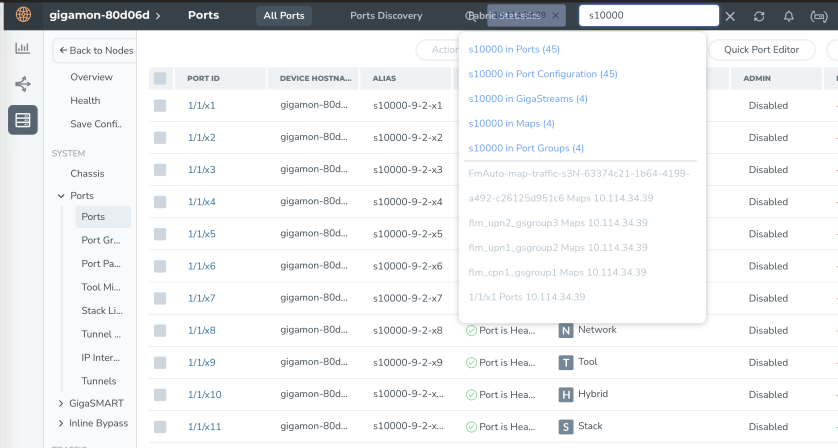
Search Examples
This section provides few examples to show how to use the global search feature. The examples cover the following:
Search Maps
You can search for maps based on the map alias, IP address associated with maps, MAC address, port status and so on. Click on the Filter by Cluster icon  in the search results page to refine the search results based on the cluster ID.
This section provides several examples of searching Maps:
Example 1: Search for a Map by Alias
In this example, you are looking for a map where you remember the map’s alias but are not sure which node or cluster it is on.
|
1.
|
Click the Search icon in the GigaVUE‑FM header to open the Keyword field and start typing the map alias. In this example, Up. |
As you type, the search displays the categories and items that match the keyword. 1 shows the search results and you can see that the map with Alias Up is on node 10.60.94.73 without typing the entire string.

|
2.
|
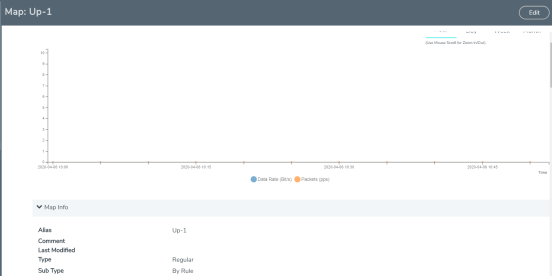
In the search results, click on Up-1. |
GigaVUE‑FM opens the Map page as shown in 2 Map Page.
Example 2: Search for a Map with an IP Address
In this example, you are searching for a map or maps that contain a specific IP address.
|
1.
|
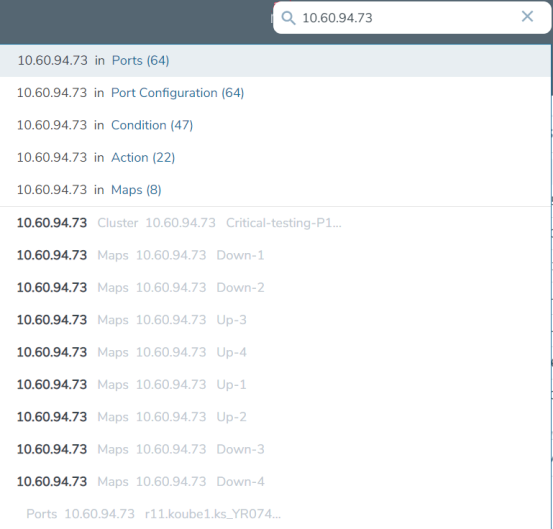
Click the Search icon in the GigaVUE‑FM header to open the Keyword field and start typing an IP address. In this example, the IP address is 10.60.94.73. |
As you type the search displays the categories and items that match the keyword. 3 shows the search results.
|
2.
|
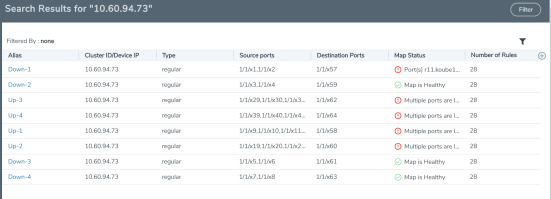
Click on Maps in the categories section of the search results. |
The Filter page opens. 4 Search Result Filter Page shows the results with maps the that contain the IP address. In this scenario, the item of interest is Down-1, so you click on the cluster name.
|
4
|
Search Result Filter Page |
A Map quick view opens, showing the information for the map.
Example 3: Search for a Map with a MAC Address
In this example, you are searching for a map or maps that contain a specific MAC address.
|
1.
|
Click the Search icon in the GigaVUE‑FM header to open the Keyword field and start typing an IP address. In this example, the IP address is 11:11:11:11:11. |
After entering the MAC address in the Keyword field, only one map is found as shown in 5.

|
2.
|
Click on the result with the map named MacSrcMap to view the map details. |
Example 4: Search for Maps with Down Ports
In this example, you are looking for maps that have a port that is in the “down” state.
|
1.
|
Click the Search icon in the GigaVUE‑FM header to open the Keyword field and type down. |
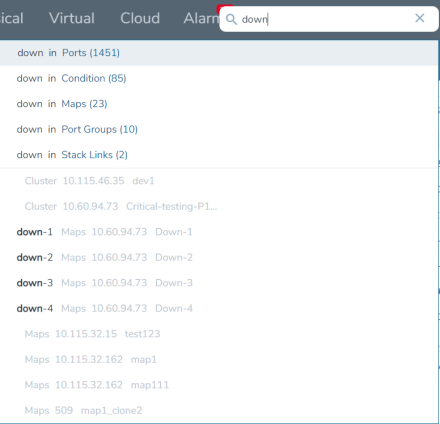
As shown in 6, the keyword occurs in several categories.
|
6
|
Search Results for down Keyword |
|
2.
|
Because you are searching for Maps, you click on the Maps category. |
Search for Roles and Users
This section provides examples of searching for a role and for a user:
Example 1: Search for Monitor Role
In this example, you are looking for where the fm_User role is applied.
|
1.
|
Click the Search icon in the GigaVUE‑FM header to open the Keyword field and type Monitor. |
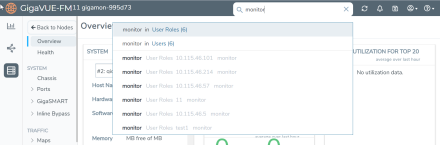
As shown in 7, the keyword occurs in the several categories.
|
7
|
Categories for Monitor. |
|
2.
|
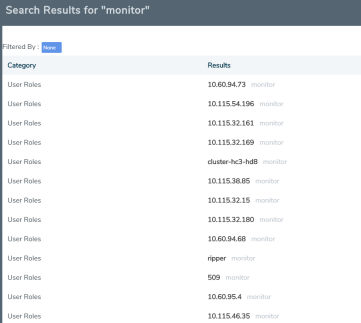
Select the User Roles category. The search results shows the nodes where the Monitor role is used. |
|
8
|
Search Results for Monitor. |
|
3.
|
From the search results, drill down further by selecting one of the results. |
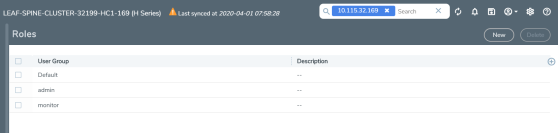
GigaVUE‑FM takes you to the User Setup page for the selected cluster as shown in 9 and indicates in the Keywords field that further searches are restricted to the cluster.
|
9
|
Role From Search Result |
Example 2: Search for a User
In this example, you are looking for a specific user.
|
1.
|
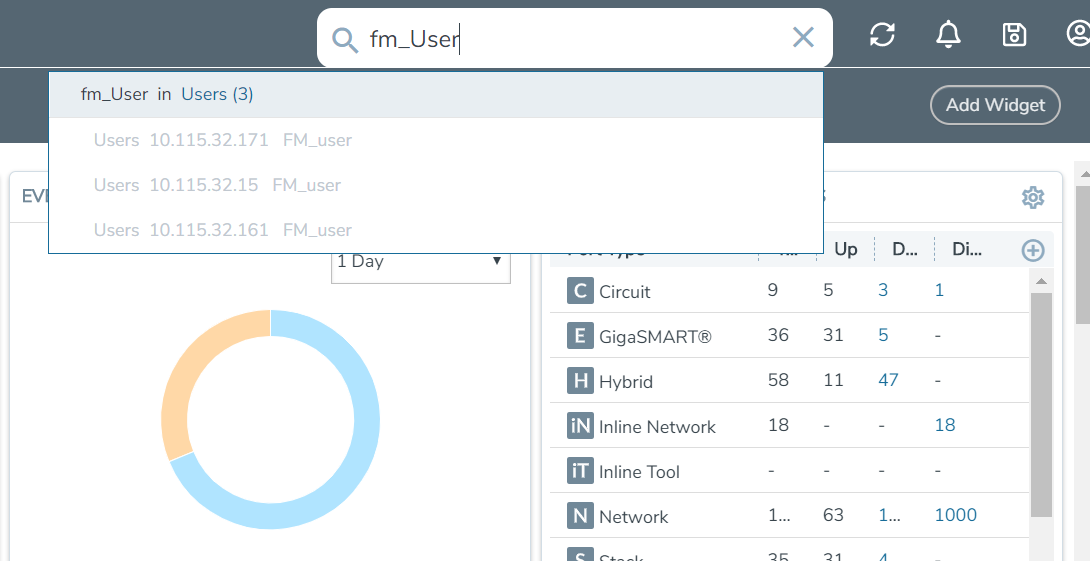
Click the Search icon in the GigaVUE‑FM header to open the Keyword field and type the user name for the user. In this example, the user is fm_User. |
|
2.
|
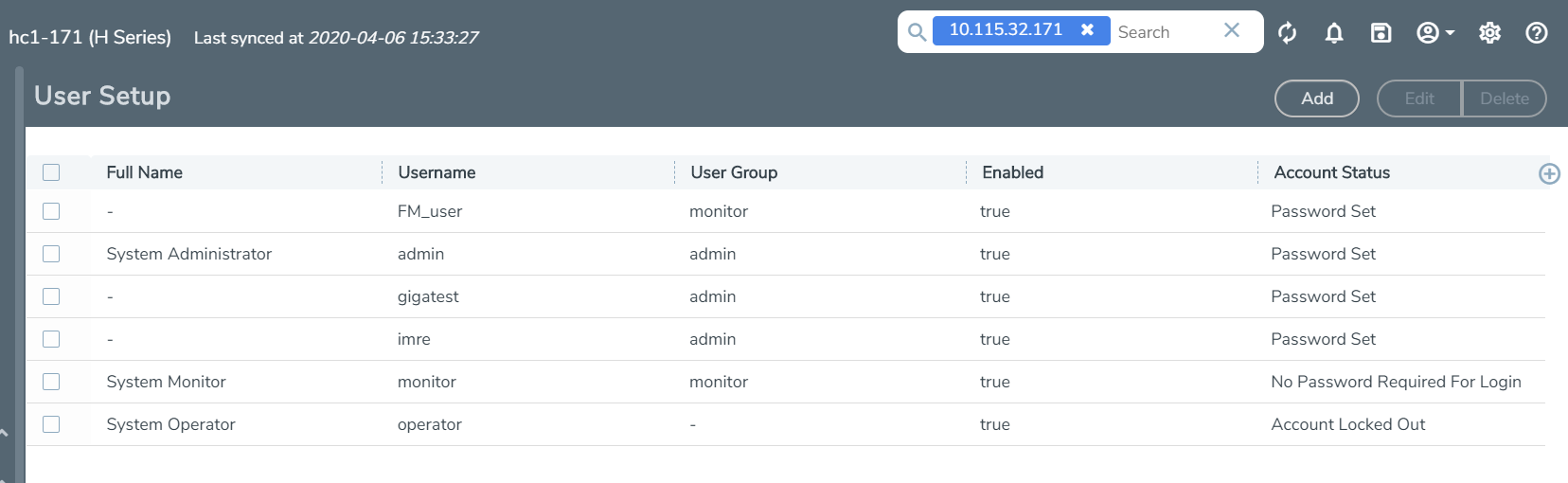
Click on fm_User in the categories and items list. The User page on the node with the fm_User opens a shown in the following figure. The Keywords field also indicates further searches are restricted to the current node. |
Search Ports
Note: You can search for ports based on the port id, port alias, cluster ID/Device IP and so on. You can also view the neighboring ports information from the port search results page. Click on the Filter by Cluster icon in the search results page to refine the search results based on the cluster ID.
This section provides few examples related to searching for ports:
Example 1: Search for Down Ports
In this example, you are searching for a particular port by its ID. This example also shows how to combine keywords.
|
1.
|
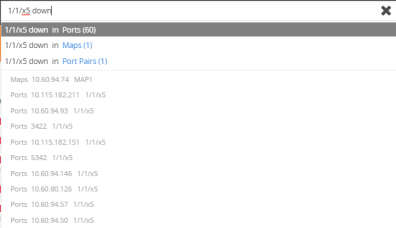
Click the Search icon in the GigaVUE‑FM header to open the Keyword field and type the port ID 1/1/x5 followed by the keyword down. |
As shown in 10, the 1/1/x5 and down occur 60 times in the Port category.
|
10
|
Categories Returned for Port ID and Down |
|
2.
|
Click on the Ports category to view the results. |
|
3.
|
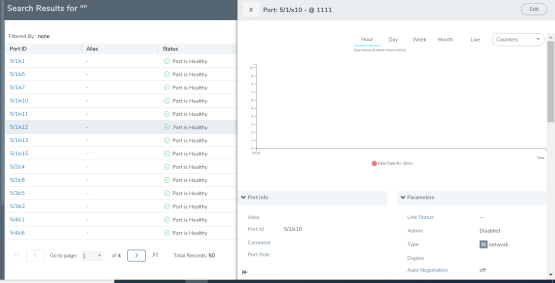
Click on an item search results to see the port information. A Port quick view displays for the selected port as shown in 11. |
|
11
|
Port Quick View for Search Results |
Example 2: Search for Port Details of Devices Managed by GigaVUE‑FM
In this example, you want to retrieve port information from all the devices managed by GigaVUE‑FM and that are up. This example also shows the use of a non-alphabetic character as the keyword.
|
1.
|
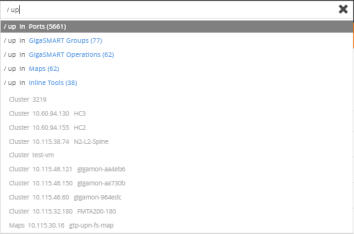
Click the Search icon in the GigaVUE‑FM header to open the Keyword field and type the back-slash character (/) and up. |
As shown in 12, the search returns results in several categories.
|
12
|
Categories Returned for Port Details of All Devices and up |
|
2.
|
Click on the Ports category to view the results. |
|
3.
|
Click on an item search results to see the port information. |
Example 3: Search for Port and Linked Resources Using a Port Alias
In this example, to search using a port alias, perform the following steps:
|
2.
|
Click Inventory > Physical > Nodes. |
|
4.
|
Select System > Ports > Ports. |
|
5.
|
In the global search, searching by port alias returns the corresponding port and all directly associated resources, including maps, GigaStreams, inline components, port groups, and interfaces. |