View Monitoring Session Statistics (AWS)
The Monitoring Session OVERVIEW page lets you analyze the incoming and outgoing traffic on an hourly, daily, weekly, and monthly basis.
You can view the high level information of the selected Monitoring Session such as, connections, tunnel details, health status, deployment status, and information related to Application Intelligence statistics. You can view the detailed statistics of an individual traffic processing element in the TRAFFIC PROCESSING tab.
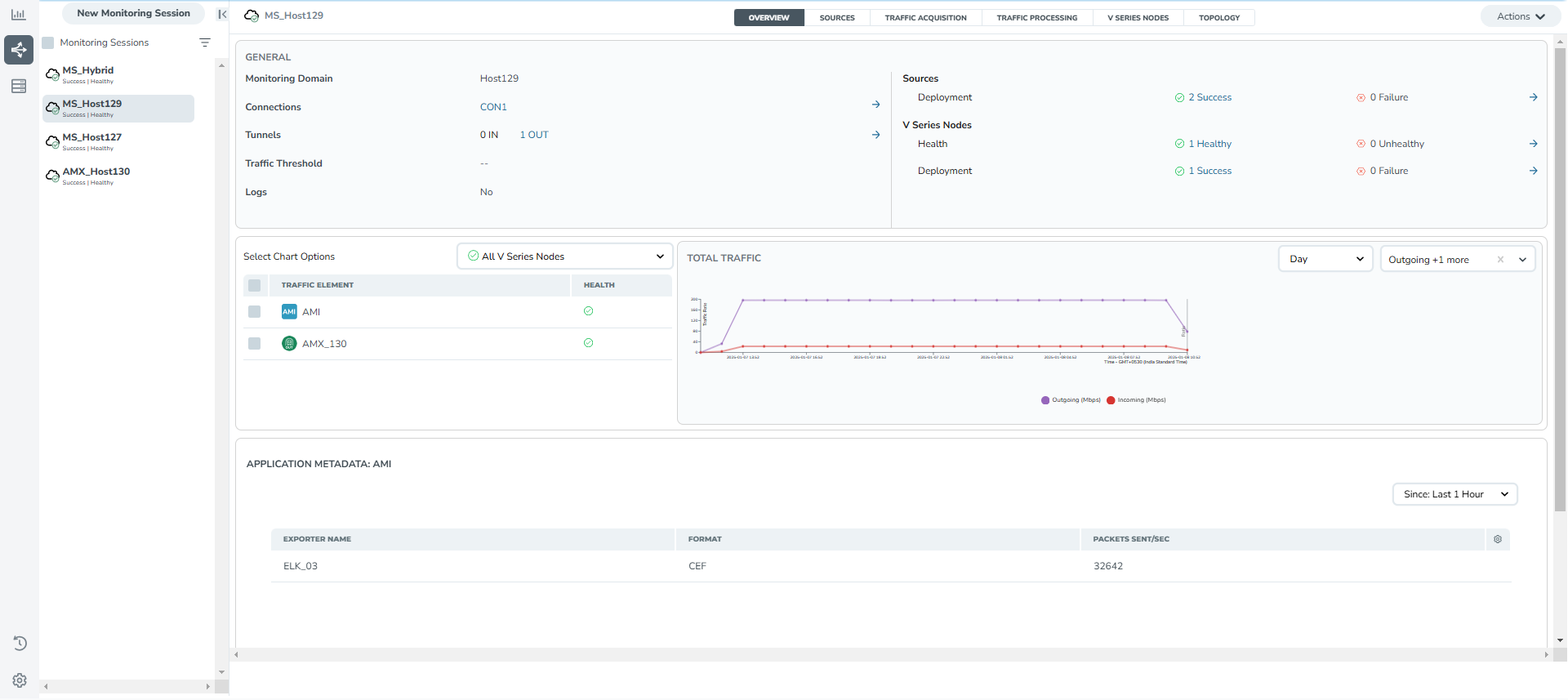
You can view the statistics by applying different filters as per the requirements of analyzing the data. GigaVUE‑FM allows you to perform the following actions on the Monitoring Session Statistics page:
| You can view the incoming and outgoing traffic on an hourly, daily, weekly, and monthly basis. |
| You can filter the traffic and view the statistics based on factors such as Incoming, Outgoing, Ratio (Out/In), Incoming Packets, Outgoing Packets, Ratio (Out/In) Packets. You can select the options from the drop-down list box in the TOTAL TRAFFIC section of the OVERVIEW page. |
| You can also view the statistics of the Monitoring Session deployed in the individual V Series Nodes. To view the statistics of the individual GigaVUE V Series Node, select the name of the V Series Node for which you want to view the statistics from the GigaVUE V Series Node drop-down list on the bottom left corner of the OVERVIEW page. |
View FQDN resolution details
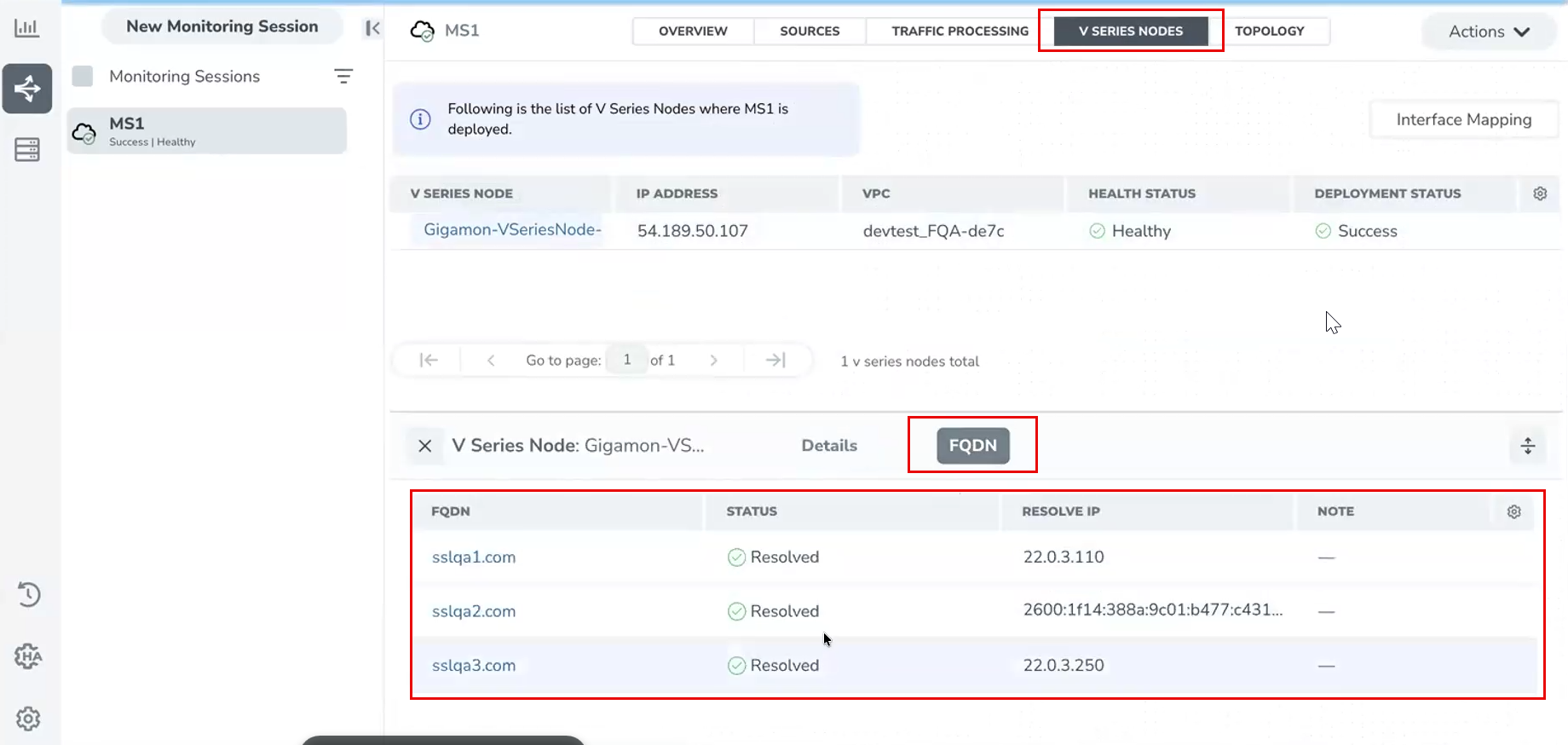
Use the FQDN tab under the V SERIES NODES tab to view the FQDNs configured for supported egress tunnel destinations in the monitoring session. This tab displays the configured FQDN, the current resolution status, and the IP address to which the FQDN currently resolves.
-
Use this tab to verify that the system resolved the configured FQDN and to identify DNS resolution issues.
-
If the system resolves the FQDN successfully, the status shows OK and the Resolve IP field displays the mapped IP address.
-
If the system cannot resolve the FQDN, the status shows Failed and the Resolve IP field displays 0.0.0.0.