FAQ Traffic Policy
Why don’t I see traffic in the dashboard after creating the Application Intelligence solution?
After you create an Application Intelligence solution, traffic should begin appearing in the dashboard within 5 to 7 minutes. If you do not see any traffic, first verify the creation time of the solution to ensure enough time has passed for traffic ingestion to start.
To view the creation time:
| 1. | In GigaVUE-FM, go to Traffic > Traffic Policy. The Traffic Policy landing page appears. |
| 2. | Select the required Traffic Policy you have configured for the Application Intelligence solution. The Traffic Policy canvas appears with the map components deployed. |
| 3. | Click More Info. The Traffic Policy details appear. You can view the creation time here.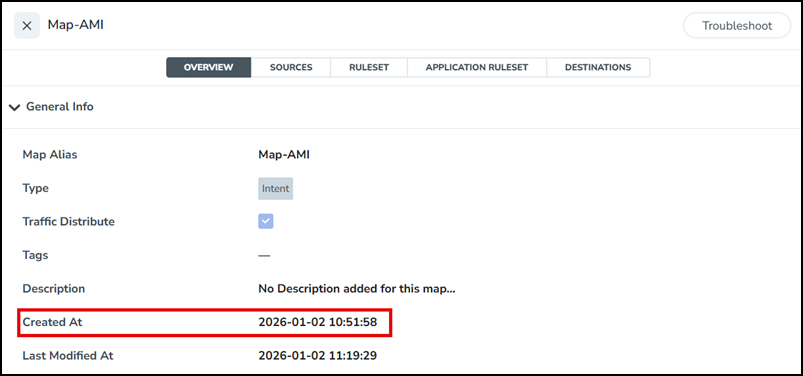 |
If more than 7 minutes have elapsed and the dashboard still shows no traffic, the issue may be related to your environment or configuration. In that case, contact Customer Support for assistance.
What can be migrated?
Traffic Policy migration supports Traffic Intelligence , Subscriber Intellugence (legacy Flow Map–based solutions, user‑created Fabric Map–based solutions0 and Application Intelligence solutions. Internally generated Fabric Maps that belong to other solutions (for example, FM‑auto maps) are treated as solution artifacts and are not migrated.
What solutions cannot be migrated?
Flexible Inline and Intent‑Based Orchestration (IBO) solutions cannot be migrated to Traffic Policy.
Where can I see the migration results?
Use Traffic > Traffic Policy > View Migration Results. You can also open View Migration Results from the legacy Flow Maps or Fabric Maps pages where the migration was triggered.
What should I check in the migration results?
Verify that Total and Success counts match your expectations. If there are any Skipped or Failed maps, click the run and then the Skipped or Failed count to see which maps were affected and why.
What happens after migration?
After migration, the configuration is represented as Traffic Policies. Any further edits to those maps must be done from the Traffic Policy page. The corresponding entries on the legacy Flow Maps / Fabric Maps / App Intel pages are treated as internal artifacts and are no longer intended for user edits.
Will migration affect traffic on the nodes?
No. Migration does not change the existing data‑plane configuration on the devices; it only changes how the configuration is managed in GigaVUE‑FM.
What happens to statistics collected before migration?
Existing traffic trending statistics continue to work as they are. New dashboards and views created for Traffic Policy will show statistics starting from the time of migration.
What should I do if there is a failure in migration?
Open the migration result, click the Failed count, and review the reason shown for each map. After collecting a sysdump and the failure details, contact Gigamon Support for assistance.
Why do I see “Unable to acquire lock for cluster <clustername>” during migration even after disconnecting the node from FM?
This usually means a configuration sync was already in progress when you disconnected the node. The Disconnect option does not interrupt in‑progress communication between GigaVUE‑FM and the node. Wait 5–10 minutes and try again.


