VLAN Manipulation
Required License:
|
■
|
GigaVUE HC Series - Base License |
|
■
|
GigaVUE TA Series - Advanced Feature License |
Overview
The VLAN manipulation adds a new VLAN tag, modifies/strips the existing outer VLAN tag based on the user configured VLAN manipulation operation. The modified packets are then delivered according to the Flow Mapping® configurations. This process ensures that the confidentiality of outgoing traffic is maintained while allowing efficient traffic segmentation.
Note: From 6.8 Release, VLAN manipulation add is supported in standalone mode. From 6.10 Release, VLAN manipulation add is supported in Cluster mode.
Note: Starting from 6.13 Release, VLAN manipulation Modify, VLAN manipulation Strip
is supported only in standalone mode. It is not supported in cluster mode.
VLAN manipulation can be configured based on map rules and maps:
|
■
|
Rule-Based- In this method, the VLAN manipulation is configured for traffic that matches a specific rule on a map. This can be configured only for pass rules. Rule-based VLAN manipulation adds a new VLAN tag, Modifies/Strips the existing outer VLAN tag based on the user configured VLAN manipulation operation. The figure below illustrates how the Outer VLAN (O-VLAN) can be added to incoming traffic using the VLAN Add operation. |
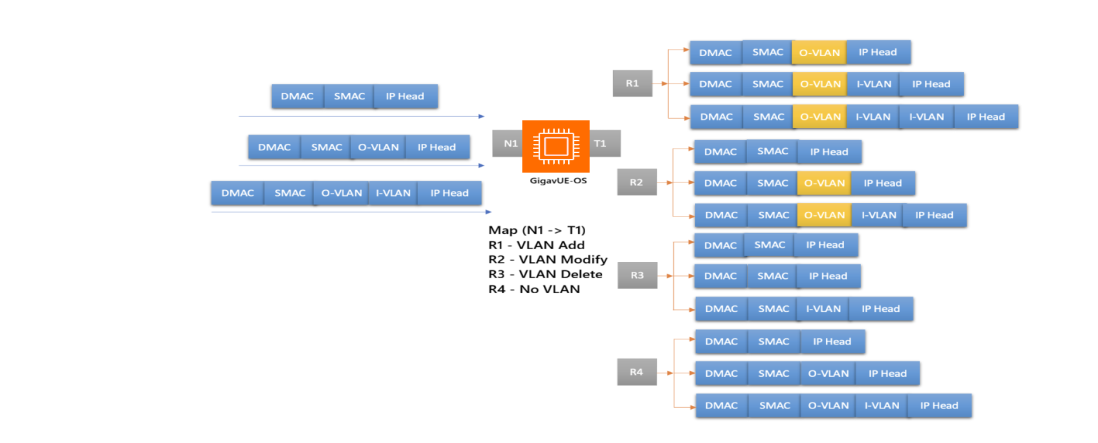
Rule-Level Add VLAN Manipulation
To add VLAN manipulation on rule-level,
|
1.
|
On the left navigation pane, go to  > Physical > Nodes. > Physical > Nodes. |
|
2.
|
Select the required cluster or device. |
|
3.
|
Go to Maps and click New Map to create the new map. |
Note: By default, a Regular ByRule Map will be created.
|
4.
|
In the Map Info dialog, do the following: |
|
•
|
Map Alias - Enter the alias for the new map. |
|
•
|
(Optional) Description - Enter the description for the new map. |
|
•
|
Subtype - Select the By Rule from the list. |
|
5.
|
In the Map Source and Destination section, do the following: |
|
•
|
Select the Source port from the list. |
|
•
|
(Optional) Select the destination port from the list. |
|
6.
|
In the Map Configuration & Rules section, go to the Map Rules section do the following: |
|
•
|
(Optional) Rule Description - Enter a rule description. |
|
•
|
From the VLAN Action field, select Add. |
|
•
|
In the VLAN ID field, enter a VLAN ID value between 1 and 4095. |
|
•
|
From the Tag Protocol Id drop-down list, select the TPID value for the VLAN Tag. The default value is 0x8100, but you can also select the other supported values 0x9100 and 0x88a8 from the drop-down list. |
|
•
|
Condition - Select the condition from list, and choose Pass. Without a condition, the rule will throw an error. |
|
7.
|
Click OK to complete the configuration. |
To configure VLAN manipulation using GigaVUE-OS CLI, refer to the “Configure VLAN Manipulation” section in the GigaVUE-OS CLI Reference Guide.
Rule-Level Modify VLAN Manipulation
To modify VLAN manipulation on rule-level,
|
1.
|
On the left navigation pane, go to > Physical > Nodes. |
|
2.
|
Select the required cluster or device. |
|
3.
|
Go to Maps and click New Map to create the new map. |
|
4.
|
In the Map Info dialog, do the following: |
|
•
|
Map Alias - Enter the alias for the new map. |
|
•
|
(Optional) Description - Enter the description for the new map. |
|
•
|
Subtype - Select the By Rule from the list. |
|
5.
|
In the Map Source and Destination section, do the following: |
|
•
|
Select the Source port from the list. |
|
•
|
(Optional) Select the destination port from the list. |
|
6.
|
In the Map Configuration & Rules section, go to the Map Rules section do the following: |
|
•
|
(Optional) Rule Description - Enter a rule description. |
|
•
|
From the VLAN Action field, select Modify. |
|
•
|
In the VLAN ID field, enter a VLAN ID value between 1 and 4095. |
|
•
|
From the Tag Protocol Id drop-down list, select the TPID value for the VLAN Tag. The default value is 0x8100, but you can also select the other supported values 0x9100 and 0x88a8 from the drop-down list. |
|
•
|
Condition - Select the condition from list, and choose Pass. Without a condition, the rule will throw an error. |
Rule-Level Strip VLAN Manipulation
To delete VLAN manipulation on rule-level,
|
1.
|
On the left navigation pane, go to > Physical > Nodes. |
|
2.
|
Select the required cluster or device. |
|
3.
|
Go to Maps and click New Map to create the new map. |
|
4.
|
In the Map Info dialog, do the following: |
|
•
|
Map Alias - Enter the alias for the new map. |
|
•
|
(Optional) Description - Enter the description for the new map. |
|
•
|
Subtype - Select the By Rule from the list. |
|
5.
|
In the Map Source and Destination section, do the following: |
|
•
|
Select the Source port from the list. |
|
•
|
(Optional) Select the destination port from the list. |
|
6.
|
In the Map Configuration & Rules section, go to the Map Rules section do the following: |
|
•
|
(Optional) Rule Description - Enter a rule description. |
|
•
|
From the VLAN Action field, select Strip. |
|
•
|
Condition - Select the condition from list, and choose Pass. Without a condition, the rule will throw an error. |
|
7.
|
Click OK to complete the configuration. |
|
■
|
Map-Based- In this method, VLAN manipulation is configured for traffic that qualifies under rules defined in regular by-rule maps and shared collectors. This configuration applies to all rules within the map except for drop rules. Map-based VLAN manipulation adds a new VLAN tag, Modifies/Strips the existing outer VLAN tag based on the user configured VLAN manipulation operation. For more information, refer to the Map VLAN manipulation Source and Destination Compatibility Matrix . |
Note: If you have configured both map level and rule level VLAN manipulation functionality in the same map, then rule-based configuration takes priority.
Map-Level VLAN Manipulation
|
■
|
Map-Level Add VLAN Manipulation
|
The figure below illustrates how the Outer VLAN (O-VLAN) can be added to the rules of the incoming traffic using the VLAN Add operation within the map-based configuration.
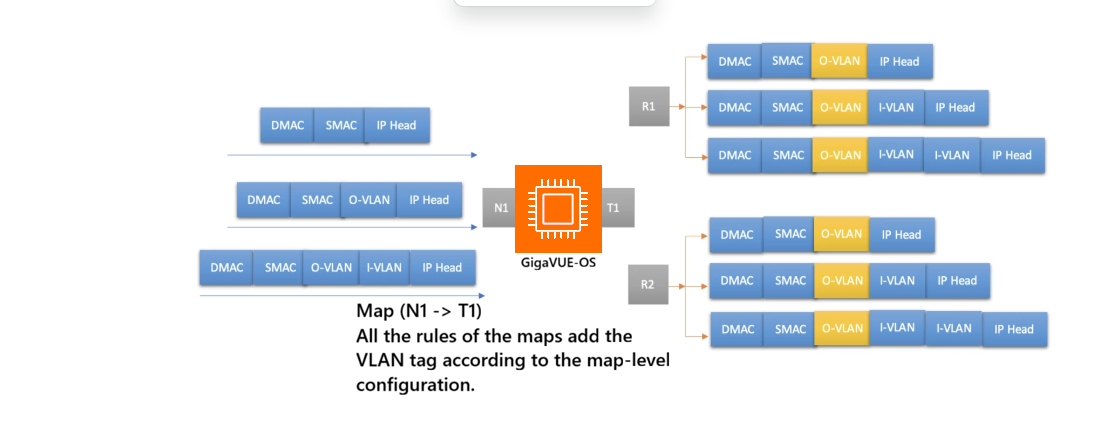
|
■
|
Map-Level Modify VLAN Manipulation
|
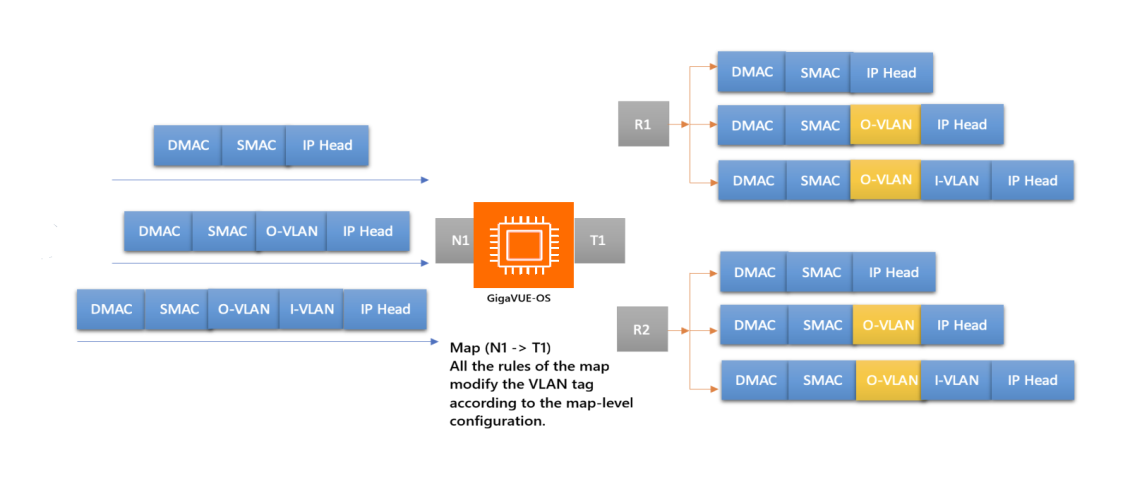
|
■
|
Map-Level Strip VLAN Manipulation
|
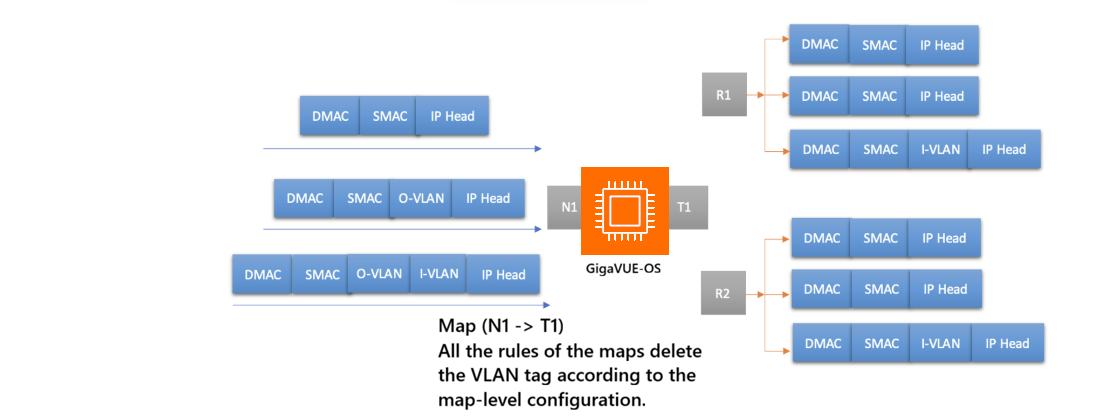
To configure VLAN manipulation on map-level,
|
1.
|
On the left navigation pane, go to > Physical > Nodes. |
|
2.
|
Select the required cluster or device. |
|
3.
|
Go to Maps and click New Map to create a new map. |
Note: By default, a Regular ByRule Map will be created.
|
4.
|
In the Map Info dialog, do the following: |
|
•
|
Map Alias - Enter the alias for the new map. |
|
•
|
(Optional) Description - Enter the description for the new map. |
|
•
|
Subtype - Select the By Rule from the list. By default, the subtype will be By Rule. |
|
5.
|
In the Map Source and Destination section, do the following: |
|
•
|
Select the Source port from the list. |
|
•
|
(Optional) Select the Destination port from the list. |
|
6.
|
In the Map Configuration & Rules section, go to the Configurations section do the following: |
Add:
|
•
|
From the VLAN Action field, select Add. |
|
•
|
In the VLAN ID field, enter a VLAN ID value between 1 and 4095. |
|
•
|
From the Tag Protocol Id drop-down list, select the TPID value for the VLAN Tag. The default value is 0x8100, but you can also select the other supported values 0x9100 and 0x88a8 from the drop-down list. |
Modify:
|
•
|
From the VLAN Action field, select Modify. |
|
•
|
In the VLAN ID field, enter a VLAN ID value between 1 and 4095. |
|
•
|
From the Tag Protocol Id drop-down list, select the TPID value for the VLAN Tag. The default value is 0x8100, but you can also select the other supported values 0x9100 and 0x88a8 from the drop-down list. |
Strip:
|
•
|
Select Strip, from the VLAN Action list. |
Note: For Strip, there is no need for a VLAN ID, and TPID is not required.
|
7.
|
Once you add the map rule configuration, do the following: |
|
•
|
In the Condition, select IPv4 Source from the list.
|
|
•
|
Enter the IPv4 Address, and Cidr, or Net Mask values.
|
|
8.
|
Click OK to complete the map configuration. |
Table 1: Map VLAN manipulation Source and Destination Compatibility Matrix
|
Source
|
Destination
|
Supported
|
|
Network
|
Tool/Hybrid, Tool GigaStream/Hybrid GigaStream, Tool with egress VLAN strip/Tool with egress Port filters.
|
Yes
|
|
Hybrid
|
Tool/Hybrid, Tool GigaStream/Hybrid GigaStream, Tool with egress VLAN strip/Tool with egress Port filters.
|
Yes
|
|
Network/Hybrid Port with ingress VLAN tag
|
Tool/Hybrid
|
Yes
|
|
Port-Group
|
Tool/Hybrid/GigaStream
|
Yes
|
|
Network /Hybrid
|
Port-group (without smart-lb enabled).
|
Yes
|
Limitations
The following are the limitations of VLAN manipulation.
|
■
|
Pass-all maps are not supported. |
|
■
|
GSOP-enabled maps are not supported. |
|
■
|
VXLAN/L2GRE Encapsulation and Decapsulation Tunnels are not supported. |
|
■
|
Inline, Flex Inline maps, and OOB copy maps are not supported. |
|
■
|
First-level, second-level, and transit maps are not supported. |
|
■
|
Fabric Maps, L2 Circuit Encapsulation and Decapsulation Tunnels are not supported. |
|
■
|
MPLS, and VXLAN Header Stripping enabled-port configurations do not support this feature. |
|
■
|
VLAN manipulation is not supported in GigaVUE‑HC3 ccv1 device. |
|
■
|
VLAN manipulation with IP rewrite is not supported. |
|
■
|
Port filter with VLAN Qualifier is not supported. |
|
■
|
When VLAN manipulation with ingress VLAN Tag is configured, VLAN Manipulation will take higher precedence. |
|
■
|
When VLAN manipulation with egress VLAN Strip is configured, VLAN Manipulation will take higher precedence. |
|
■
|
If advanced VLAN manipulation is configured on either regular by-rule maps or shared collector maps, then both Passall maps or Port Pair should not use the same network ports as those deployed in regular and collector maps. Similarly, if a collector map or regular map is configured on the same network ports as a Passall map or Port Pair, VLAN manipulation should not be configured. Configuring VLAN manipulation in the above two scenarios may result in traffic discards on the destination ports of the Passall map. |


