Perform Initial Configuration
You can optionally perform the following configurations:
| Perform Network Configurations |
| Add Additional vNIC, vCPUs, and Increase Memory |
Perform Network Configurations
To perform the initial configuration:
| 1. | Log in to GigaVUE-FM using one of the following methods: |
| If you have a IP address set up for the GigaVUE-FM, log into GigaVUE-FM directly using the IP address. |
a. Log into GigaVUE-FM directly using the IP address.
b. Enter the following default login Credentials:
• Username: admin
• Password: admin123A!!
c. On first login, you will be asked to change the password. Enter the current password, then set and confirm a new one.
| If you do not have a IP address set up for the GigaVUE-FM, complete the following steps: |
a. Log in to the VMware vCenter web interface.
b. Select the required GigaVUE-FM virtual machine, and click Console.
c. After the password is successfully changed, no reboot is required. You are logged in to the fmctl command prompt instead of a standard bash shell. If you need to run other Linux commands, you can switch to the (admin) bash shell by running the shell command in the fmctl command prompt. For the list of fmctl commands, refer to GigaVUE-FM CLI Commands.
| 2. | Perform the following steps to complete the initial configuration: |
Note: In the VM console, if you are in (admin) bash shell command prompt, you can run both fmctl and bash shell commands. To run fmctl commands, prefix every command given below with fmctl.
- Provide a unique hostname for GigaVUE‑FM. Note that the hostname may contain letters, numbers, periods (.), and hyphens (-), but may not begin with a hyphen. No other special characters are permitted.
Example: set hostname <host-name>
- Enter the required domain name.
Example: set domain <domain-name>
- Decide whether to use DHCP or STATIC for the management interface. Choose one of the following options:
- If you want to set DHCP the IPv4 Address or IPv6 Address, CIDR, Gateway, DNS Servers, and Search Domains are dynamically set up for the management interface.
Example: set ip dhcp
- If you want to set static ip for GigaVUE‑FM, you must provide the following:
- IPv4 Address or IPv6 Address, and the respective CIDR and Gateway.
Example: set ip static<IP address>/<mask> <gateway>
Example: set ip6 static<IPv6 address>/<mask> <gateway>
- In the DNS Servers field, provide the address of any additional name servers required. Enter the set of IP addresses with spaces in between.
Example: set nameservers <IP address>
- In the Search Domains field, provide the required DNS domains with spaces in between.
Example: set searchdomain <domain-name>- You can choose to either enable or disable NTP using fmctl command.
Example: set ntp enable 0.pool.ntp.org, 1.pool.ntp.org, 2.pool.ntp.org
- Reboot your GigaVUE‑FM virtual machine.
You can now access GigaVUE‑FM by opening a browser and entering its IP address (the IP address you specified).
Note: You must reboot the GigaVUE‑FM, when there is a change in the IP address of the GigaVUE‑FM.
Add Additional vNIC, vCPUs, and Increase Memory
Gigamon allows you to configure GigaVUE‑FM with two network interfaces—eth0 and eth1. The network interface eth0 can be configured to connect to a network used to manage Gigamon devices. The other network interface eth1 can be configured to connect to a network hosting different servers like SMTP server, Archive server, and so on.
Follow the steps given below to add Additional vNIC, vCPUs, and increase memory:
- Right-click the GigaVUE-FM instance and select Edit Settings... . The Edit Settings dialog box opens.
- Click on the Virtual Hardware tab, edit the memory and CPU details to increase the memory and add vCPUs.
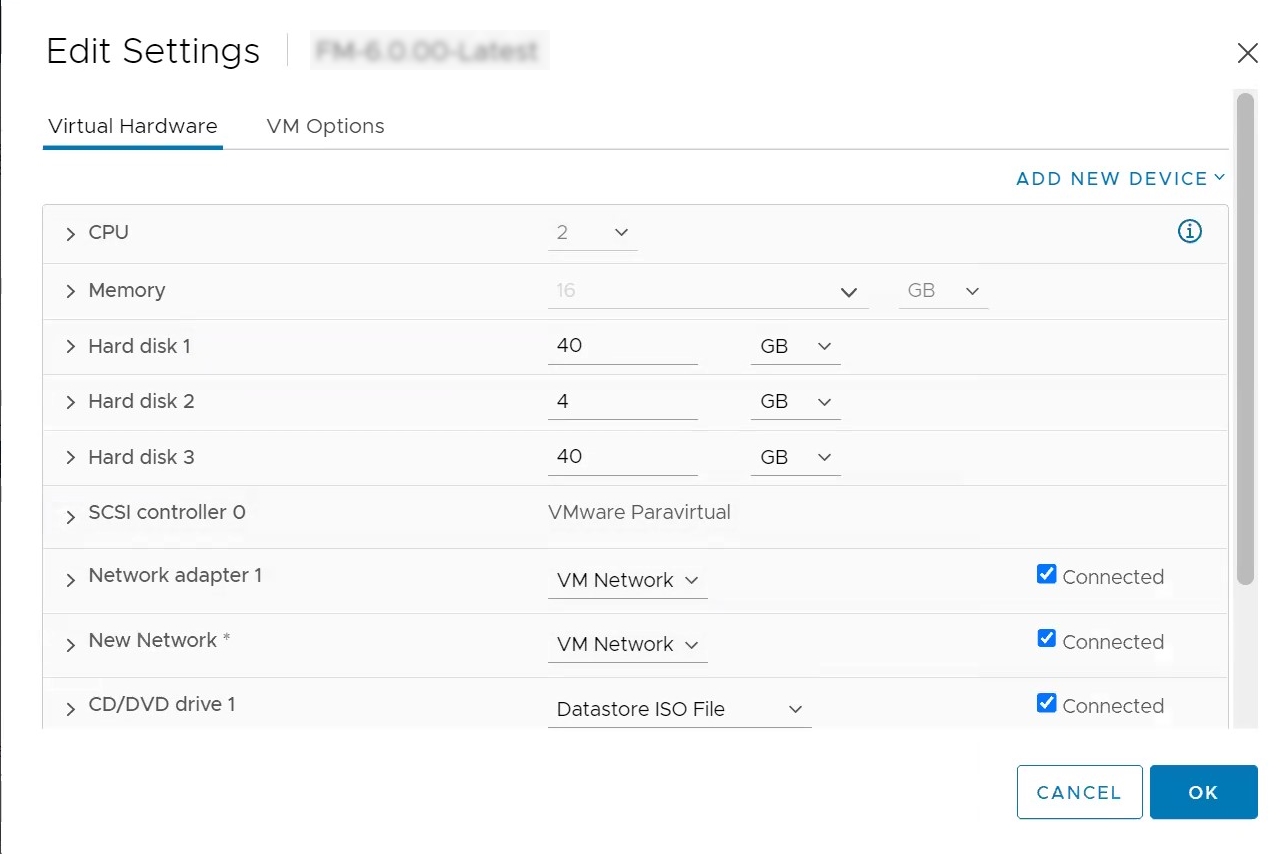
- Click on the Add New Device drop-down in the top right corner.
- Select Network Adapter under Network. A New device (additional vNIC) is added to GigaVUE‑FM.


