Create Monitoring Domain
A Monitoring Domain in GigaVUE‑FM allows you to define and manage this connection. Once established, GigaVUE‑FM can deploy and manage GigaVUE V Series Proxy, and GigaVUE V Series Nodes within your specified VNets and Resource Groups.
GigaVUE‑FM connects to Azure using either an Application ID and Client Secret (Service Principal) or the Managed Service Identity (MSI) authentication method.
Prerequisite
-
Before configuring, you must establish a connection between GigaVUE‑FM and your Azure environment.
-
You configure a custom Region in Azure before creating a Monitoring Domain. For detailed instructions, refer to Configure Custom Settings for Azure Secret and Top Secret Regions.
To create an Azure monitoring domain in GigaVUE‑FM,
-
Go to Inventory > VIRTUAL > Azure
-
Select Monitoring Domain.
The Monitoring Domain page appears.
-
In the Monitoring Domain page, select New.
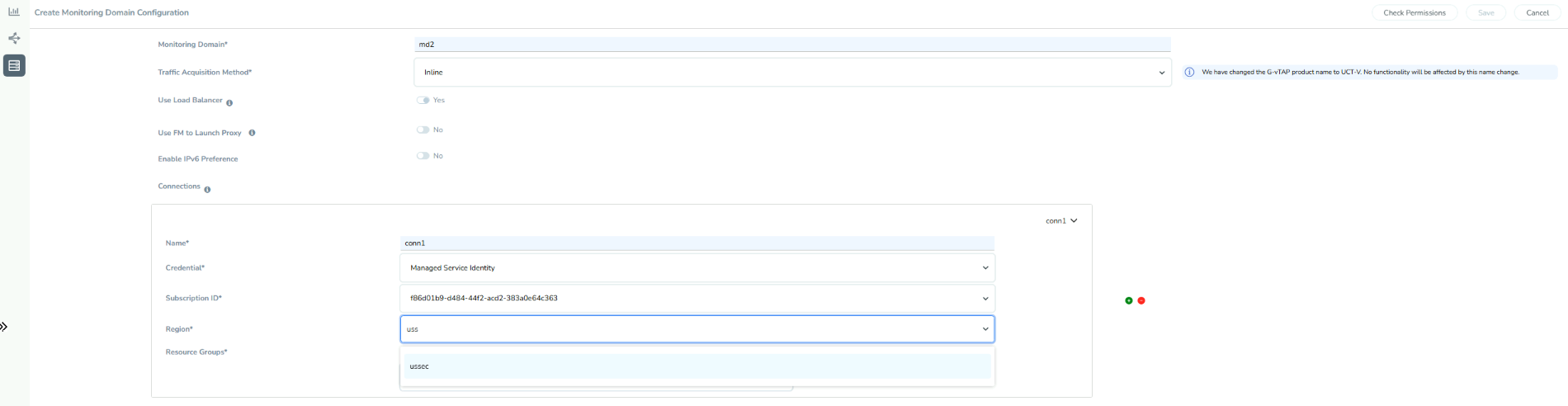
The Azure Monitoring Domain Configuration wizard appears.
-
Enter or select the appropriate information for the Monitoring Domain:
-
Monitoring Domain: An alias used to identify the monitoring domain.
-
Traffic Acquisition Method: Select Inline as the Tapping method:
-
Inline: You can directly capture the inline traffic from the instances.
-
-
Use FM to Launch Fabric: Select Yes to Configure GigaVUE Fabric Components in GigaVUE-FM or select No to Configure GigaVUE Fabric Components .
-
Connections:
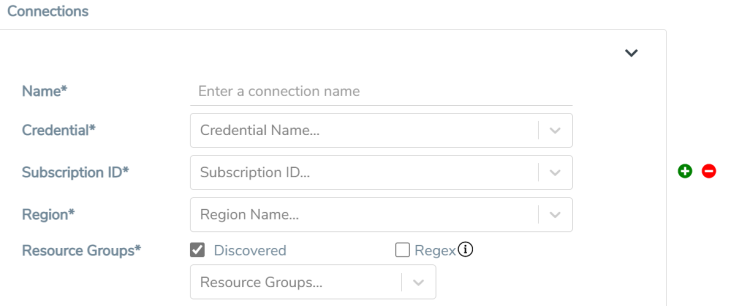
- A Monitoring Domain can have multiple connections, however only one connection can have Managed Service Identity as the Credential.
- The connections in a monitoring domain can be a combination of multiple Application ID with Client Secret (Service Principal) accounts, or one Managed Service Identity and multiple Application ID with Client Secret (Service Principal) accounts.
- Each connection can have only one Subscription ID.
-
Name: An alias used to identify the connection.
-
Credential: Select an Azure credential. For details, refer to Create Azure Credentials.
-
Subscription ID: A unique alphanumeric string that identifies your Azure subscription.
-
Region: Azure region for the monitoring domain. For example, West India.
-
Resource Groups: Select the Resource Groups of the corresponding VMs to monitor.
Notes:This field is not applicable if you select Customer Orchestrated Source as the Traffic Acquisition Method. When you remove and re-add a resource group in IAM, it won't appear in GigaVUE-FM automatically. To refresh the list and make the resource group selectable, reselect the Subscription ID from the drop down. This action triggers the UI to reload the resource groups associated with the selected subscription.
-
-
Select Save.
The Azure Fabric Launch Configuration wizard appears.
| Ensure that all V Series Nodes within a single Monitoring Domain are running the same version. Mixing different versions in the same Monitoring Domain may lead to inconsistencies when configuring Monitoring Session traffic elements. |
| Similarly, when upgrading a V Series Node, ensure that the GigaVUE‑FM version is the same or higher than the V Series Node version. |
| You can only view and delete the existing configuration for GigaVUE V Series Node 1. You cannot perform any other actions on the existing configuration for GigaVUE V Series Node 1 as the features are deprecated from GigaVUE-FM. |
Check Permissions while Creating a Monitoring Domain
Note: The Check Permissions feature is not available when the Traffic Acquisition Method is vTAP.
To check the permissions while creating a monitoring domain, follow these steps:
- Go to Inventory > VIRTUAL > Azure.
- Select Monitoring Domain. The Monitoring Domain page appears.
- Select New. The Monitoring Domain Configuration page appears.
- Enter the details as mentioned in the Create Monitoring Domain section.
- Select Check Permission. The Check Permissions widget opens.
- Select the connection for which you wish to check the required permissions and then click Next.
- Select the Permission Status tab to view the missing permissions. The PERMISSIONS tab lists the permissions required to run GigaVUE Cloud Suite for Azure.
- Make sure to include all the permissions with Access Status as 'Denied' in the IAM policy.
The IAM POLICY tab lists the sample policy containing the required permissions for deploying the GigaVUE Cloud Suite for Azure. You must update the Azure IAM policy with the missing permissions that are highlighted in the JSON. To recheck the IAM policy, go to the PERMISSIONS tab and selectthe Recheck button.
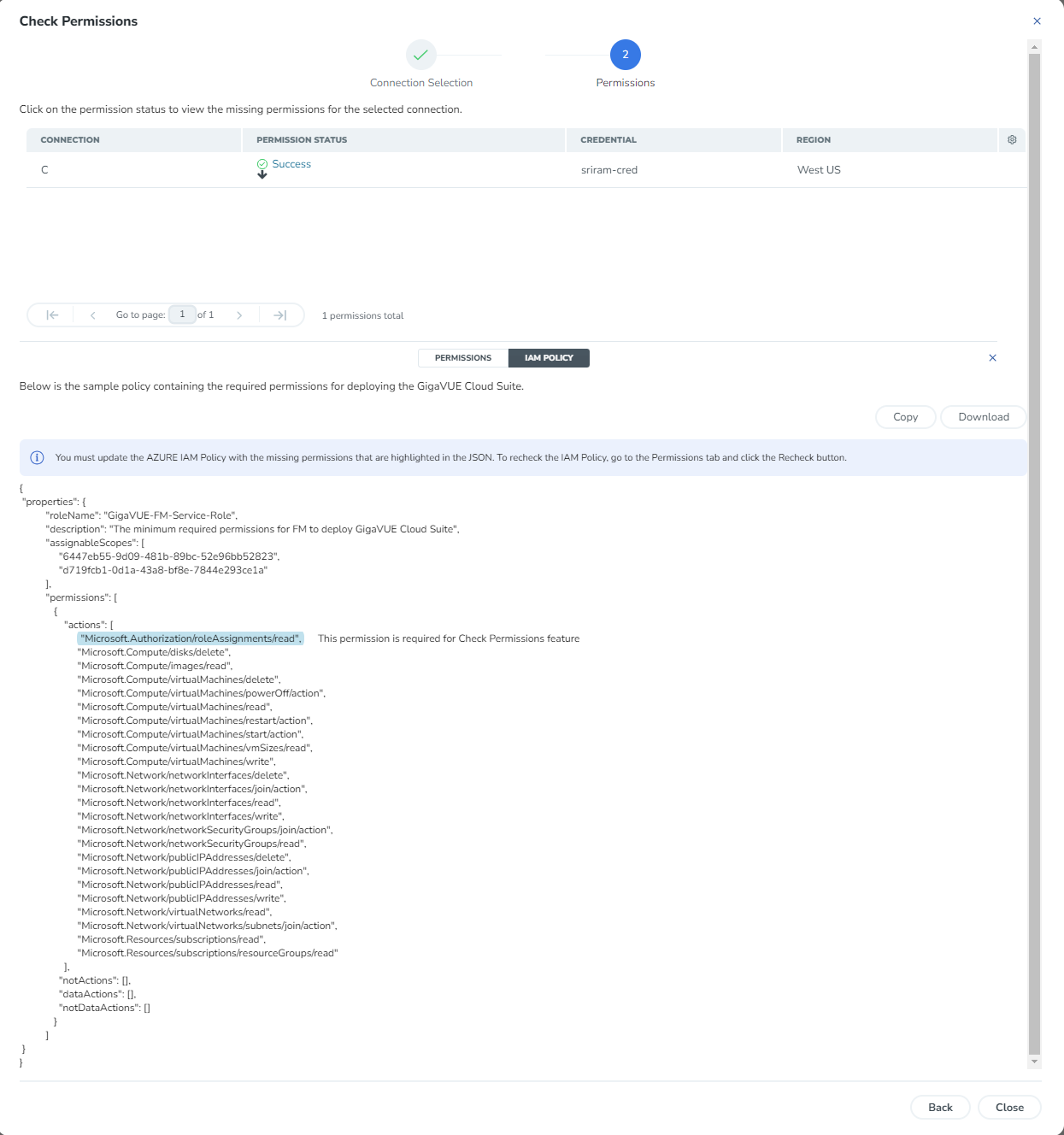
You can use the Copy button to copy the permissions to the clipboard. Also, you can use the Download button to download the permission in JSON format.
Note: After updating the IAM Policy, it takes around 5 minutes for the changes to reflect on the Check Permissions screen.


