Role Based Access Control
The Role Based Access Control (RBAC) feature controls the access privileges of users and restricts users from either modifying or viewing unauthorized data. Access privileges in GigaVUE Cloud Suite work on the same principles of access privileges in GigaVUE-FM in which the access rights of a user depend on the following:
- User role: A user role defines permission for users to perform any task or operation
- User group: A user group consists of a set of roles and set of tags associated with that group. When a user is created they can be associated with one or more groups.
To access the resources and to perform a specific operation in GigaVUE Cloud Suite you must be a user with fm_super_admin role or a user with write access to the following resource category depending on the task you need to perform.
| Resource Category |
Cloud Configuration Task |
|---|---|
|
Infrastructure Management: This includes the following cloud infrastructure resources:
|
|
|
Traffic Control Management: This includes the following traffic control resources:
|
|
|
Third Party Orchestration: This includes the following resource:
|
Deploy the fabric components using Third Party Orchestration. Refer to Configure Role-Based Access for Third Party Orchestration for more details on how to create users, roles, and user groups for Third Party Orchestration. |
Note: Cloud APIs are also RBAC enabled.
Refer to the GigaVUE Administration Guide for detailed information about Roles, Tags, User Groups.
Configure Role-Based Access for Third Party Orchestration
Prerequisites:
Configure the AWS credentials in GigaVUE‑FM to monitor workloads across multiple AWS accounts within one Monitoring Domain. For details, refer to Create AWS Credentials.
Role-Based Access for Third Party Orchestration
Before deploying the fabric components using a third party orchestrator, you must create users, roles and the respective user groups in GigaVUE‑FM. You can use the user group to create a token for registration data that helps deploy fabric components in your orchestrator.
Users
You can add users only if you are a user with fm_super_admin role or a user with either read or write access to the GigaVUE-FM security Management category.
To add users:
| 1. | Go to Settings and select Authentication > GigaVUE-FM User Management > Users. |
| 2. | On the User page, select New User. |
| 3. | In the Add User page, enter the following details: |
| Name: Actual name of the user |
| Username: User name configured in GigaVUE-FM |
| Email: Email ID of the user |
| Password/Confirm Password: Password for the user. |
| User Group: Select the desired User Group to associate the user. |
GigaVUE‑FM prompts for your password.
| 4. | Click Ok. The new user is added. |
Roles
A user role defines permission for users to perform any task or operation in GigaVUE‑FM or on the managed device. You can associate a role with user.
Note: A user with read-only access cannot perform configurations on the screen. The menus and action buttons in the UI pages are disabled appropriately.
To create a role:
| 1. | Go to Settings and select Authentication> GigaVUE-FM User Management >Roles. |
| 2. | Select New Role. |
| 3. | In the New Role page, select or enter the following details: |
- Role Name: Name of the role.
- Description: Description of the role.
- Select Permission: From the Select Permissions tab, select Third Party Orchestration, and provide write permissions.
| 4. | Select Apply to save the configuration. |
User Groups
A user group consists of a set of roles and set of tags associated with users in that group. You can associate a new user to one or more groups.
To create a new user group,
| 1. | Go to Settings, and then select Authentication> GigaVUE-FM User Management >User Groups. |
| 2. | Select New Group. |
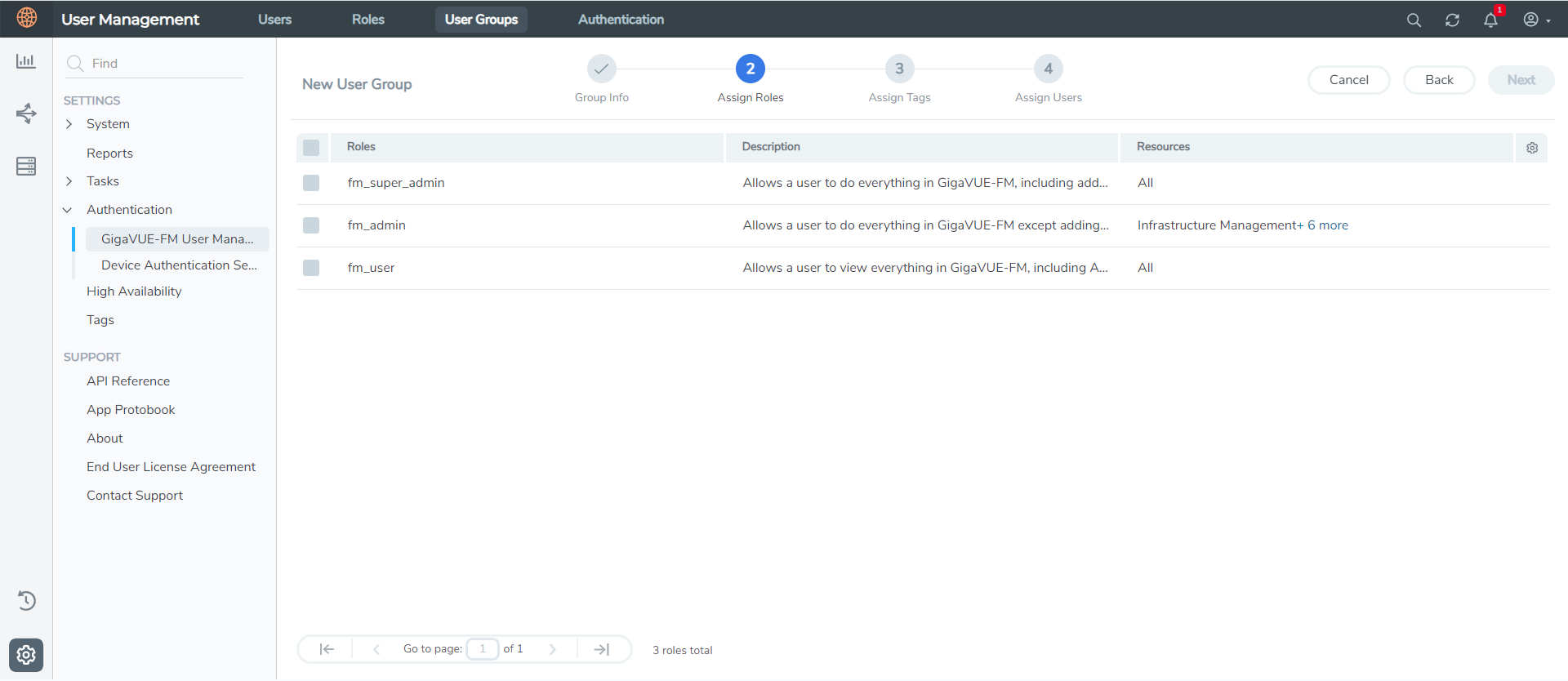
| 3. | In the Wizard, perform the following steps. |
a. Select Next to progress forward and Back to navigate backward.
b. In the Group Info tab, enter the following details:
- Group Name
- Description
c. In the Assign Roles tab, select the role that you want to assign to the user group.
d. In the Assign Tags tab, select the required tag key and tag value.
e. In the Assign Users tab, select the required users.
f. Select Apply to save the configuration.
Note: Select Skip and Apply to skip this step and proceed without adding users.
The new user group is added to the Summary list view.
Select the ellipses to perform the following operations:
| Modify Users: Edit the details of the users. |
| Edit: Edit an existing group. |
What to do Next:
Log in to GigaVUE‑FM using the newly created user credentials and create tokens. For details, refer to Configure Tokens.


