View Inline Solution Status and Statistics
The flexible inline canvas provides you with the ability to view the status of the flexible inline flow deployments, port statistics, and the details of the cluster-level maps used in the deployments. You can use these details to troubleshoot any issues or failures in your flexible inline flows. The inline flows has the following tabs:
| Status |
| Statistics |
Refer to the following sections for more details:
- View Inline Solution Status
- View Inline TLS/SSL Session Statistics
- View Inline TLS/SSL Monitor Statistics
- View Inline TLS/SSL Certificate Statistics
- View HSM Statistics
- View ICAP Statistics
View Inline Solution Status
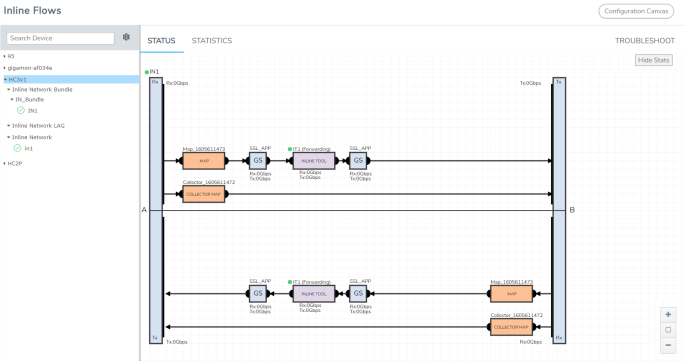
The Status tab provides details of the forwarding states of inline network. Click the required component that is part of the selected inline network to view the component’s properties.
It also provides the status of the components that are part of the selected inline network. Hover over the status to view the description.
Click the Show Stats/Hide Stats toggle button to view the Rx/Tx rate for the components that are part of the flexible inline flow deployment. Refer to the following figure for details.
Rules and Notes
Keep in mind the following points when you are viewing the details in the Status tab:
-
The ability to view the Rx/Tx rate for the components is supported only for GigaVUE-HC1, GigaVUE‑HC3 and GigaVUE‑HC2 devices.
-
The Rx/Tx rate for inline components are displayed in GigaVUE‑FM only for flexible inline deployments. In addition, the historical trends are not displayed in GigaVUE‑FM. However, you can view the Rx/Tx rate for classic inline components using the GigaVUE-OS CLI commands. For details, refer to the following topics in the GigaVUE-OS CLI Reference Guide:
-
show
-
ib pathway
-
inline tool group
-
inline tool
-
inline serial
-
inline network group
-
inline network
-
icap
-
-
The Rx/Tx rate that is displayed is not for a map or a flexible inline flow, but it is a cumulative value that is shared across multiple maps and flexible inline flows.
-
The Rx/Tx rate for a GigaSMART group is a cumulative value for the traffic flowing between both a-b and b-a directions.
-
The Rx/Tx rate for OOB copy is supported only for single tool.
-
You cannot view the health status of GigaSMART.
-
The near real time data is not displayed for LED's health status and failover state representation of the inline component. The data gets updated during the GigaVUE‑FM configuration synchronization period. Alternatively, when the Rx/Tx rate for an inline component drops to zero, you can choose to refresh the Status tab to view the updated data.
View the Forwarding States of Inline Networks
To view the forwarding states of inline networks in the flexible inline canvas, choose the required inline network, and then click Status. Refer to the following figure.
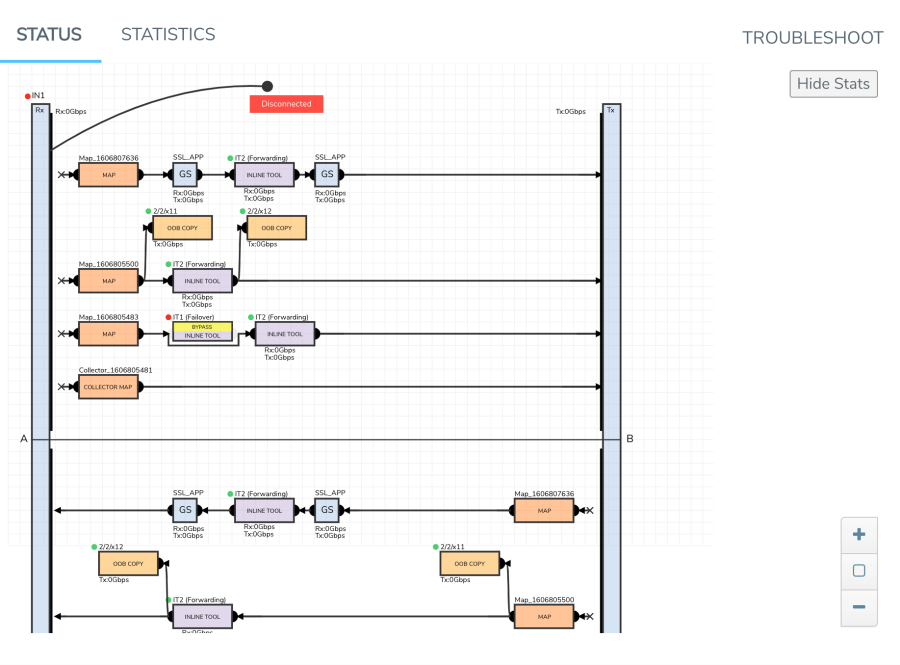
| 1 | Inline Network Forwarding States |
Following inline network states are not explicitly shown in the flexible inline canvas:
| Normal—If the state of all inline tools are up, the inline network is in Normal state. |
| Abnormal—If any inline tool involved in flexible inline maps (directly or indirectly as a member of an inline tool group) is operationally down and there is no network-level failover action in effect, the inline network is in an Abnormal state. |
Following table provides the list of forwarding states of inline network and their description.
|
Inline Network Physical Bypass |
Inline Network Traffic Path |
Far-End Status of Links Connected to Inline Network Ports |
Operational State of Not Forced Inline Tools and Inline Tool Groups Involved in Maps from the Inline Network |
Forwarding State |
Description |
||||||
|
enable |
any inline network traffic path configuration |
any combination of far-end ports status |
any combination of operational state of the inline tools or inline tool groups involved in the maps originating from the inline network |
PHYSICAL BYPASS |
all traffic exchanged directly between the end nodes without being noticed by the switching fabric (GigaVUE node acting as a wire or fiber) |
||||||
|
disable |
traffic path set to drop |
any combination of far-end ports status |
any combination of operational state of the inline tools or inline tool groups involved in the maps originating from the inline network |
DISABLED |
all traffic arriving at the inline network ports is dropped |
||||||
|
disable |
traffic path set to bypass, monitoring, or to-inline-tool |
at least one far-end port is down |
any combination of operational state of the inline tools or inline tool groups involved in the maps originating from the inline network |
DISCONNECTED |
No traffic is exchanged between the nodes |
||||||
|
disable |
traffic path set to bypass |
both far-end ports are up |
any combination of operational state of the inline tools or inline tool groups involved in the maps originating from the inline network |
FORCED BYPASS |
All traffic that matches any of the maps originating from the inline network is redirected through a logical bypass |
||||||
|
disable |
traffic path set to monitoring |
both far-end ports are up |
any combination of operational state of the inline tools or inline tool groups involved in the maps originating from the inline network |
FORCED BYPASS WITH MONITORING |
A copy of the traffic originating from the inline network bypasses the sequence of inline tools and inline tool groups and is re-directed to the opposite-side inline network port. Another copy of the traffic is directed to the sequence of inline tools and inline tool groups, except that no traffic of the second copy is sent to the exit port. |
||||||
|
disable |
traffic path set to to-inline-tool |
both far-end ports are up |
all inline tools involved (directly or indirectly as members of inline tool groups) in the maps originating from the inline network are in the up operational state |
NORMAL |
The traffic is guided between the source inline network port and the destination inline network port according to the status of the inline tools and inline tool groups. Note: The state of all inline tools must be up, including inline tools configured as spare in an inline tool group, inline tools or inline tool group members in the a-to-b and b-to-a lists configured with any traffic path other than to-inline-tool. |
||||||
|
disable |
traffic path set to to-inline-tool |
both far-end ports are up |
at least one of the inline tools or inline tool groups involved in the maps originating from the inline network configured with the traffic path parameter to-inline-tool and failover action of network-port- forced-down is in the down operational state |
NETWORK PORTS FORCED DOWN |
No traffic is exchanged between the inline network ports, and the inline network ports are brought down |
||||||
|
disable |
traffic path set to to-inline-tool |
both far-end ports are up |
|
FAILURE INTRODUCED DROP |
All traffic arriving at the inline network ports is dropped |
||||||
|
disable |
traffic path set to to-inline-tool |
both far-end ports are up |
|
FAILURE INTRODUCED BYPASS |
All traffic that matches any of the maps originating from the inline network is redirected through a logical bypass |
||||||
|
disable |
traffic path set to to-inline-tool |
both far-end ports are up |
any combination of conditions not listed for the forwarding state definitions of PHYSICAL BYPASS, DISABLED, DISCONNECTED, FORCED BYPASS, FORCED BYPASS WITH MONITORING, NORMAL, NETWORK PORTS FORCED DOWN, FAILURE-INTRODUCED DROP, or FAILURE-INTRODUCED BYPASS |
ABNORMAL |
The traffic is guided between the source inline network port according to the status of the inline tools and inline tool groups Note: If any inline tool involved in flexible inline maps (directly or indirectly as a member of an inline tool group) is in the down operational state and there is no network-level failover action in effect, the inline network is in the ABNORMAL state. |
Note: When the Inline Network traffic path is set to monitoring and the Inline Tool Failover action is configured as 'Network Port Force Down,' the Inline Tool will continue to receive traffic, even if it is disabled or in an operational down state. This behavior is expected.
View Inline TLS/SSL Session Statistics
The Statistics tab provides statistical information of the inline network ports, inline tool ports, and the virtual ports used in the selected inline network. It also provides the inline decryption session statistics for the inline network. The inline network, inline tools, ICAP Client, and the ports aliases are displayed as clickable links. Use these links to access the quick view of the respective component. Refer to the following figure for details.
To display the inline TLS/SSL summary details, go to GigaSMART > Inline SSL > Session Statistics, view the Summary details under Summary tab which is displayed initially. Refer to 3 Inline TLS/SSL Session Statistics in GigaVUE-FM.
There are four sections: Session Statistics, Performance Statistics, Policy Statistics, and Certificate Statistics. Click Show Summary to view these sections. Click Clear Session Summary to clear all the displayed summary details.
| 3 | Inline TLS/SSL Session Statistics in GigaVUE-FM |
To view the inline TLS/SSL session details, go to GigaSMART > Inline SSL > Session Statistics. Click on the Sessions tab. The list of available sessions will be displayed. To search and filter the session details, click Filter and enter an IPv4 source or destination, an L4 port source or destination, or a host name.
View Inline TLS/SSL Monitor Statistics
To display monitor statistics, go to GigaSMART > Inline SSL > Monitor Statistics. Select the required GigaSMART engine from the drop-down menu.
There are three sections. The first section, which has a graph for INTERFACE TRAFFIC and Interface Packet statistics, is displayed initially. To return to this display, click the small graph, TOTAL INCOMING PACKETS. Refer to 4.
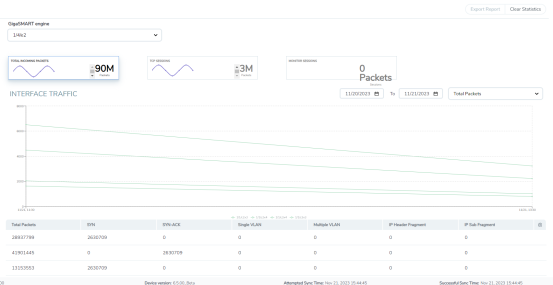
| 4 | Inline TLS/SSL Session Monitor—Interface Packet Statistics |
To display the graph and statistics for TCP Sessions, click the small graph, TCP SESSIONS. Refer to 5.
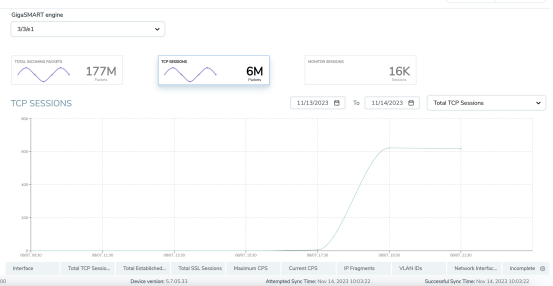
| 5 | Inline TLS/SSL Session Monitor—TCP Sessions |
To display Monitor Sessions, click the small graph, MONITOR SESSIONS. Refer to 6.
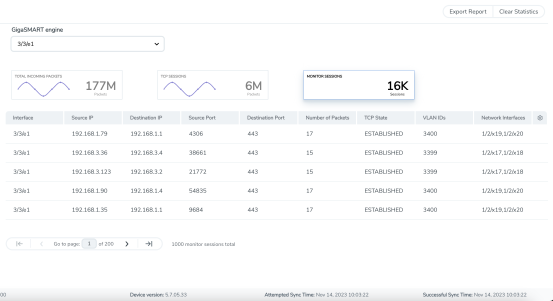
| 6 | Inline TLS/SSL Session Monitor—Monitor Sessions |
Click Clear Statistics to clear all the displayed statistics details.
View Inline TLS/SSL Certificate Statistics
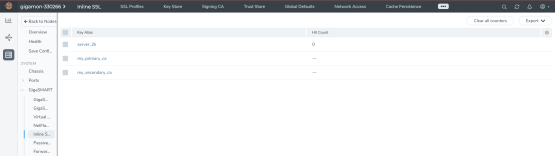
To view certificate statistics, go to GigaSMART > Inline SSL > Certificate Statistics. The page displays the hit count of each key store certificate and allows to track whether the certificate is actively used or not. The hit count is numbered only if the policy is set for decryption. If the policy is set to no-decryption or if the deployment is outbound, the hit count will not be considered.
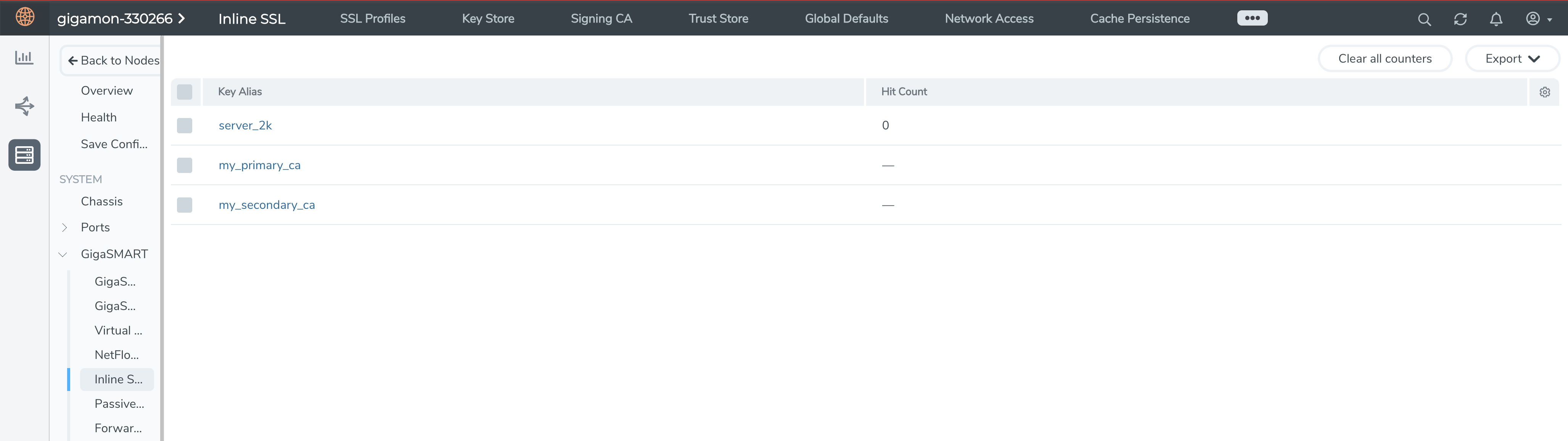
| 7 | Inline SSL - Certificate Statistics |
Click Clear all Counters to clear the hit counter of all the certificates. Click Export to export the available hit count details.
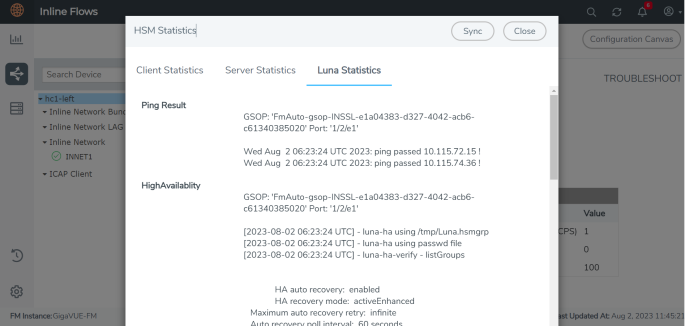
View HSM Statistics
| 1. | In the Inline Flows page, select the required device for which you want to view the statistics. |
| 2. | Click Statistics > View HSM Statistics. You can view the following statistics details for Entrust nShield HSM under Client Statistics and Server Statistics: |
| Number of Request(s) Received |
| Number of Response(s) Sent |
| Metric values |
| Error details |
| Number of Request(s) Sent |
| Number of Response(s) Received |
| Delay time |
| Average Round Trip Time |
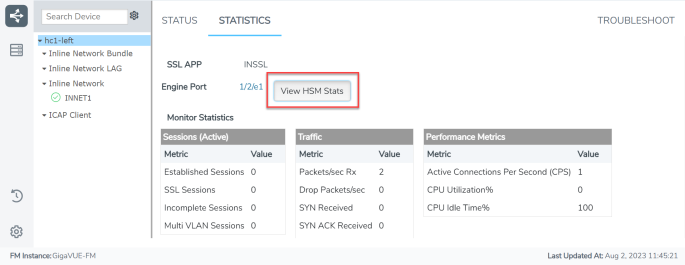
The HSM Statistics window includes the following tabs:
| Client Statistics tab, which includes information on number of requests received and responses sent, metrics, and error details. |
| Server Statistics tab, which includes details on the number of requests sent and responses received, delay, and average time drop details. |
| Luna Statistics is included in the HSM Statistics window. The Luna Statistics tab provides statistical information on the Ping Result, High Availability, and the verification details. |
View ICAP Statistics
The Show Stats option will be displayed after the ICAP Client app is configured and deployed. The Show Stats option has the following tabs:
-
Statistics
-
Session
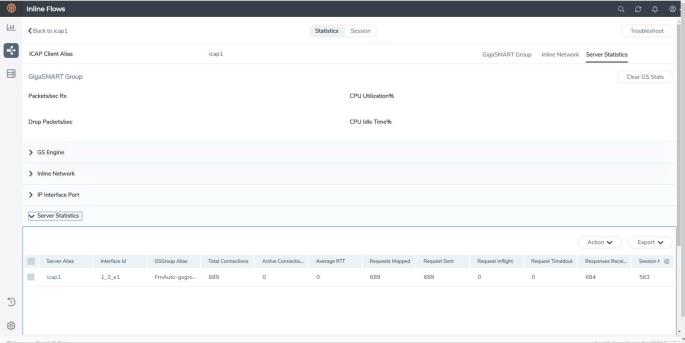
The Statistics tab provides statistical information on the GigaSMART group, GS engines, inline network, IP interface port, and server statistics. Click the drop-down menu of each component listed on the statistics page to know more about the configuration details. You can also view the statistics from the sidebar on the Inline Flows page.
The GS Engine drop-down menu provides information on the ICAP session statistics. Click Clear GS Stats to clear the statistics of the GS group.
To view ICAP session statistics details, click the Sessions tab.
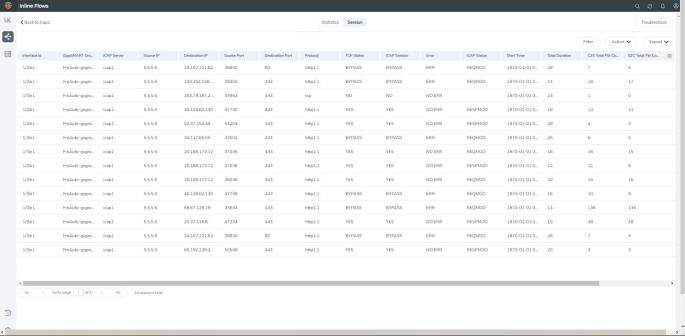
Refer to the below table for more details on the sessions tab.
|
Field |
Description |
|
Filter |
To view the statistics of a particular IP with selected parameters. |
|
Action |
Upload to server: To export the log details to an external server. |
|
Export |
To export the current session details to local. |


