Configure UCT-V Controller in Azure
You can configure more than one UCT-V Controller in a monitoring domain.
You can register UCT-V Controller in Azure Portal using one of the following methods:
- Register UCT-V Controller during Virtual Machine Launch
- Register UCT-V Controller after Virtual Machine Launch
Register UCT-V Controller during Virtual Machine Launch
In your Azure portal, to launch the UCT-V Controller init virtual machine and register UCT-V Controller using custom data, follow these steps:
- In the Virtual machines page of the Azure Portal, select Create > Virtual machine.
The Create a Virtual Machine Page appears. For details, refer to the Create virtual machine topic in Azure Documentation. - On the Advanced tab, enter the Custom Data as text in the following format and deploy the virtual machine Copy
#cloud-config
 write_files:
 - path: /etc/gigamon-cloud.conf
   owner: root:root
   permissions: '0644'
   content: |
     Registration:
        groupName: <Monitoring Domain Name>
        subGroupName: <Connection Name>
        token: <Token>
        remoteIP: <IP address of the GigaVUE-FM>
        sourceIP: <IP address of UCT-V Controller> (Optional Field)
        remotePort: 443
-
Enter the monitoring domain name and the connection name of the monitoring domain created earlier as the groupName and the subGroupName in the Custom Data.
-
The UCT-V Controller uses this custom data to generate config file (/etc/gigamon-cloud.conf) used to register with GigaVUE‑FM
The UCT-V Controller deployed in your Azure portal appears on the Monitoring Domain page of GigaVUE‑FM.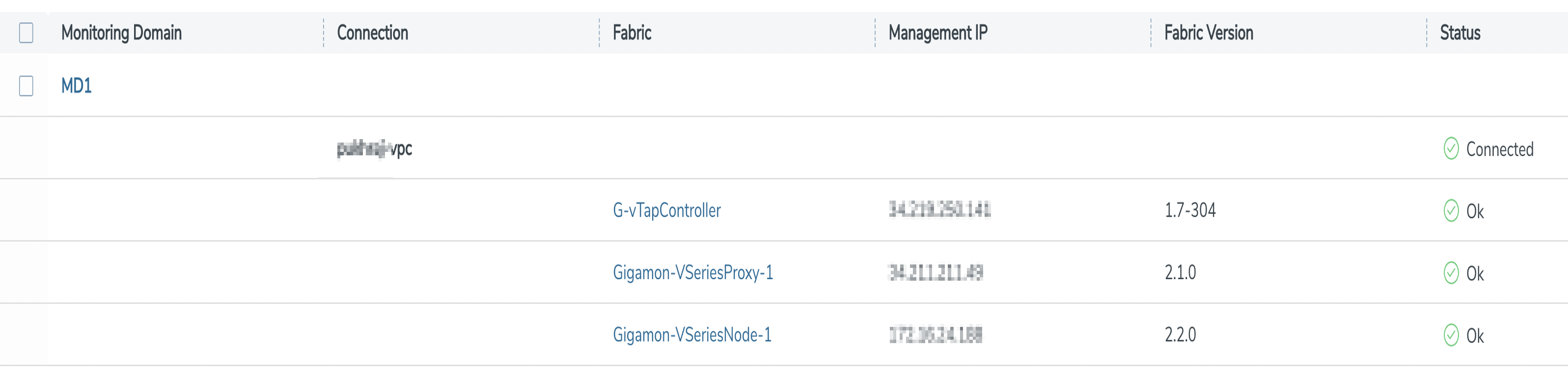
Register UCT-V Controller after Virtual Machine Launch
To register UCT-V Controller after launching a Virtual Machine using a configuration file,
- Log in to the UCT-V Controller.
- Create a local configuration file (/etc/gigamon-cloud.conf) and enter the following custom data.Copy
Registration:
    groupName: <Monitoring Domain Name>
    subGroupName: <Connection Name>
    token: <Token>
    remoteIP: <IP address of the GigaVUE-FM>
    sourceIP: <IP address of UCT-V Controller> (Optional Field)
remotePort: 443 - Restart the UCT-V Controller service.
$ sudo service uctv-cntlr restart
To assign a static IP address, perform the following steps:
| 1. | Navigate to /etc/netplan/ directory. |
| 2. | Create a new .yaml file. |
Note: Do not use the default 50-cloud-init.yaml file.
| 3. | Update the file as shown in the following sample: |
network:
  version: 2
  renderer: NetworkManager
  ethernets:
    <interface>:                # Replace with your actual interface name (e.g., eth0)
      dhcp4: no
      dhcp6: no
      addresses:
        - <IPV4/24>             # e.g., 192.168.1.10/24
        - <IPV6/64>             # e.g., 2001:db8:abcd:0012::1/64
      nameservers:
        addresses:
          - <DNS_IPV4>          # e.g., 8.8.8.8
          - <DNS_IPV6>          # e.g., 2001:4860:4860::8888
      routes:
        - to: 0.0.0.0/0
          via: <IPV4_GW>        # e.g., 192.168.1.1
        - to: ::/0
          via: <IPV6_GW>        # e.g., 2001:db8:abcd:0012::fffe

Example netplan config:

network:
  version: 2
  renderer: NetworkManager
  ethernets:
    ens3:
      addresses:
        - 10.114.53.24/21
      dhcp4: no
      dhcp6: no
      accept-ra: false
      routes:
        - to: 10.114.48.1/32
          scope: link
        - to: default
via: 10.114.48.1| 4. | Save the file. |
| 5. | Apply the configuration. |
$ sudo netplan apply


