Filter
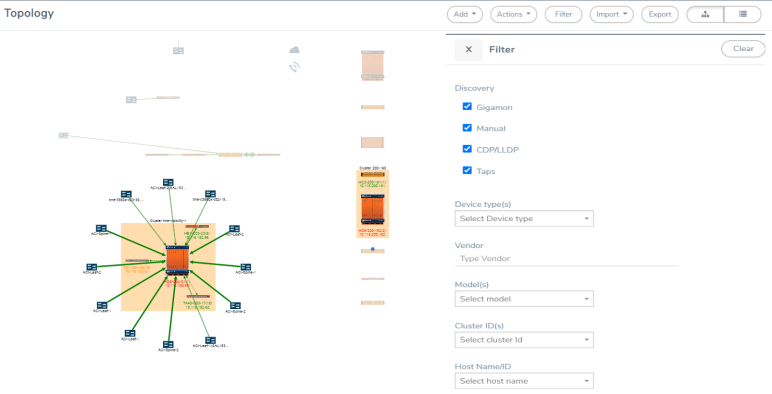
Clicking the Filter button opens a Filter quick view. For topologies with large numbers of elements, the filter is useful for displaying only those items of immediate interest. The Filter quick view has the following options:
|
Filter Option |
Description |
||||||||||||
|
Discovery |
Display discovered nodes by selecting one or more of the following (all are selected by default):
Note: If both CDP and LLDP packets are discovered on the same port, the topology construction relies on LLDP packets over CDP.
|
||||||||||||
|
Device Types |
Display only nodes of the selected type, such as router, switch, virtual switch, load balance, and so on. You can select more than one type. |
||||||||||||
|
Vendor |
Display manually added nodes that are from the specified vendor. Enter the vendor’s name in the Vendor field. |
||||||||||||
|
Models |
Display only the specified Gigamon model. You can select more than one model. |
||||||||||||
|
Cluster IDs |
Display the clusters or nodes with the specified IDs. The drop-down list displays the IDs of the clusters and nodes in the topology. You can select more than one node or cluster. |
||||||||||||
|
Node Status |
Display nodes with the specified status. The possible statuses are OK, Error, and Warning. |
In the following figure, all Discovery filters are selected and two clusters are specified in the Cluster ID(s) field. Only items that meet the filter criteria are displayed while all other elements are grayed out.
 MORE INFORMATION


